Is Mobile Device Management a Fit for You? 5 Ways MDM Can Help

Is an MDM platform a fit for your business? And what are the benefits, anyways?

Confused about mobile device management or enterprise mobility management? As a mobile device manager, how can you determine if your business is likely to benefit? And what are the benefits you can expect to obtain? We are MDM experts at CSSI, so we wrote up this brief explainer to discuss these 2 questions.

Is MDM a fit for your business?

How to tell if a Mobile Device Management Solution is a fit for your business

MDM software such as SOTI MobiControl or Microsoft Intune supports your management of mobile devices. Because of the cost and setup overhead involved, MDM implementation doesn’t make sense for everyone, particularly businesses with small numbers of devices and simple deployments. But there are 2 factors to consider to evaluate the benefit you are likely to get from MDM:

  1. Do you have many mobile computing devices in use? As you tally up the number of handhelds, tablets, laptops and phones under management, the more devices you have the more benefits you are likely to receive from MDM software. As a rule of thumb, consider that a business with more than 20 devices is likely a great candidate for MDM. Scenario: You manage 100 mobile devices and just received an important security patch which needs to be deployed immediately. How are you going to get that done?
  2. Do you manage devices in more than one location? An important additional consideration is the number of locations in which your mobile devices are used. If your business has multiple plants or warehouses, or if you have many remote users, you are more likely to benefit from MDM. Scenario: Your business has locations in several states, and you regularly get support calls from users hundreds of miles away. How can you help them quickly?
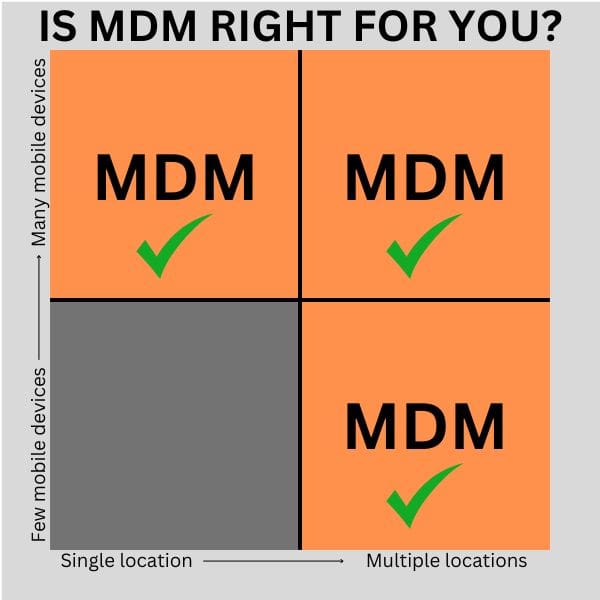
is mobile device management (MDM) a fit for your business?

As a quick summary, both a business with many devices in one location and a business with few devices spread across multiple locations are both likely candidates for MDM software. For a business with many devices in multiple locations, MDM is a must-have to improve device management and the efficiency of the IT team.

5 benefits that MDM offers to managers of mobile devices

So how can mobile device management software help your business? Here are 5 very real benefits you can receive from MDM:

standardize mobile device configurations with MDM

1. Standardize mobile device configuration

Mobile device management software is a key tool to support standardization of a mobile device configuration. By creating device profiles and enrolling devices under the correct profile, you can ensure that each computer is setup identically and follows corporate policies for device security. This dramatically eases both technical support and user training, since you can be assured that your users are sharing a common experience.

faster device deployment with MDM

2. Faster new device provisioning

New employee devices on the way? You can get a head start by building out the MDM profiles, enabling you to quickly update and then deploy the devices upon arrival! If you work with an MDM support expert such as CSSI under our Device Lifecycle Management program, we can even ensure that your devices arrive ready-to-deploy right out of the box! This takes a significant burden off of the overworked IT staff.

Use MDM to simplify OS upgrades and security patches

3. Simplify device software upgrades and security patches

If your organization uses dozens (or hundreds) of devices, the prospect of having to put hands on each device to perform OS upgrades, apply patches and perform mobile application management might cause you to suffer from nightmares! But with an MDM tool, the burden is lifted. If devices share a common profile, you can perform mass updates without having to touch each device. It’s a lifesaver for operations with quantities of mobile computers!

improve end user technical support with MDM and SOTI MobiControl

4. Faster, more efficient user support and trouble-shooting

It’s hard enough to keep up with end-user’s requests for device technical support… so what if those users aren’t in the same building or even the same state as the IT support staff? Mobile device management solutions such as SOTI MobiControl allow device remote management and remote control, which enables the IT staff or anyone in a mobile device manager role to virtually look over the shoulder of the end user regardless of where in the world they are. Support tickets can resolve faster and device user satisfaction will increase. Even better from the standpoint of the business, users can get back to productive behavior more quickly!

MDM improves mobile device security

5. Improve device security & reduce device losses

Concerned about your valuable mobile computers walking out the door with users at the end of a shift? MDM tools such as SOTI help with asset management, providing features such as geofencing, which can lock the device once it leaves your defined usage zones. Also, you can use MDM for device tracking to determine where a missing device was last seen, and hold the responsible end user accountable for a loss.

CSSI can help you implement and manage an MDM platform

Do you have questions about a mobile device management solution, or do you wish to explore its potential benefits in your business? Do you need help managing your device fleets? CSSI is an MDM provider – our MDM experts are available to help, both with MDM implementation, subscription support programs and ad-hoc hourly support. Please contact us to discuss MDM to manage your mobile computers.

Q: What is mobile device management (MDM) software, and why does my business need it?
A. MDM software such as SOTI MobiControl gives IT teams centralized control over the smartphones, tablets, and rugged mobile computers used across an organization — from initial setup to security policies to retirement. As mobile devices become standard tools on the warehouse floor and in the field, and as falling hardware costs and 5G connectivity put more devices into more workers’ hands, MDM is what lets IT manage that growing fleet efficiently instead of handling every device one-off.

Q: How does MDM reduce the workload on our IT team?
A. Without MDM, IT staff have to manually configure, test, and troubleshoot each device individually — a repetitive process that eats up hours as fleets grow. MDM automates device provisioning and configuration at scale, freeing IT capacity from routine device upkeep so staff can focus on strategic projects that move the business forward.

Q: Can MDM actually improve employee productivity?
A. Yes. MDM shortens the device deployment process from days to hours, so new hires and field workers get equipped and working faster. Once a device is issued, MDM also speeds up network access to essential tools like email, calendars, and line-of-business apps — time savings that add up quickly across a large workforce.

Q: How does MDM reduce security risk?
A. MDM lets IT enforce cybersecurity requirements systematically across every device — password policies, encryption, app restrictions — rather than hoping individual users comply on their own. It also gives IT visibility into device usage and the ability to remotely lock or wipe a device when an employee leaves, reducing the risk of data loss or a lost device exposing confidential company information.

Q: Will MDM help us control mobile device costs and support future growth?
A. It can do both. High-end devices often run over $1,000 each before factoring in software licenses and telecom charges, and MDM helps surface unused or forgotten devices sitting in storage so businesses stop paying for hardware and service plans they don’t need. On the growth side, a scalable MDM setup supports onboarding new users — whether it’s 100 or 10,000 — without missing service level agreements, positioning IT as an enabler of expansion rather than a bottleneck.
Did you know that there is a productivity loser embedded deep within many organizations? It’s embedded so deeply that most organizations don’t even notice it anymore… they have come to accept it as normal. But its impact is expensive and malign within your company, and it carries very real costs for your organization.

We’re talking about dropped sessions. Unfamiliar with the term? Let’s learn more…

What Is a Dropped User Session?

Mobile computers and tablets at use in a warehouse or production facility are typically running warehouse management software (WMS) or other business applications which require a connection with the company’s network or cloud. In most cases, these connections are made through the company’s wireless network.

When the wireless connection is lost, a ‘dropped session’ occurs if the worker loses access to the workflow task with which they were engaged. In many cases, a dropped session will cause the worker to lose his or her place or progress within a task and may cause the application to lock up.

What Happens When a User Session is Dropped?

Often, when a dropped session occurs, the worker will have to restart the task with which he or she was engaged. This means going back and redoing scans and entries which had been previously made… for example, repeating picking or putaway tasks within the computer so that they can be marked complete. In some cases, the mobile device may have to be rebooted or may be locked up so severely that IT help is required.

Clearly, in these events, the worker’s productive time is lost, as the worker repeats work or spends time getting the device connected again.

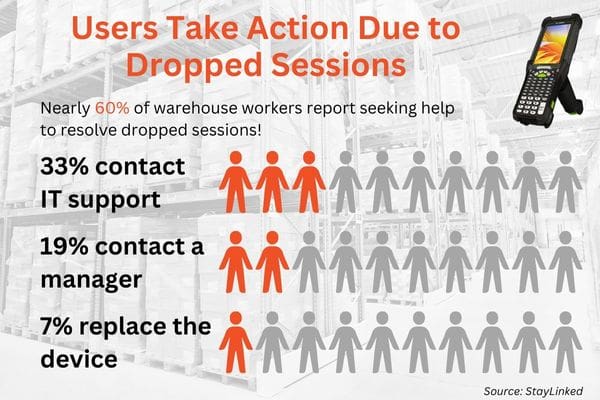
But user session drops don’t just impact the worker holding the device. According to a survey by StayLinked, workers often seek help when they experience dropped sessions:

  • 33% contact IT support for help
  • 19% get their manager involved
  • 7% leave their work area to get a difference device
Users lose productivity due to dropped sessions

As you can see from these answers, in these cases the affected worker will get other employees involved to help resolve their issue. This means that the time loss is not limited to the impacted employee, but will also impact a broader group of workers. This creates even more distraction and disturbance in the flow of productive work.

The Economic Cost of User Session Drops

The very real cost of session drops can be calculated by the lost productivity of the impacted employees. StayLinked reports that dropped sessions cost businesses an average of $29.23 per worker per day . For a company with 50 warehouse workers, that adds up to about $400,000 per year!

Beyond these direct costs, there are further indirect costs… less productivity means less output, which means orders may ship late, frustrating customers and impacting the company’s reputation.

What Causes Dropped Sessions? Hardware, Software, or Network?

When companies choose to address the issue of dropped sessions, the first suspect is typically the mobile computer. After all, this is the device in hand which appears to be the problem. It is possible in some cases that the handheld device may not maintain connection acceptably, but this is often not the core issue.

Next up is the network… is coverage acceptable throughout the facility? Are there overlapping zones which can confuse devices? Are there remote corners of the building where signal is weak? How about tunnels or cluttered areas? Companies may often benefit from a wireless survey to map out the facility and determine if there are wi-fi dead zones which can be corrected.

However, even after that wireless survey has been done, companies may find that’s it’s difficult (or prohibitively expensive) to create the perfect environment The nature of the facility may make that unrealistic to achieve. In these cases, it is wise to create a cost-effective ‘plan B’, which is to eliminate the negative impact of session drops.

This is what we seek to achieve with Session Persistence…

StayLinked Software Creates Session Persistence

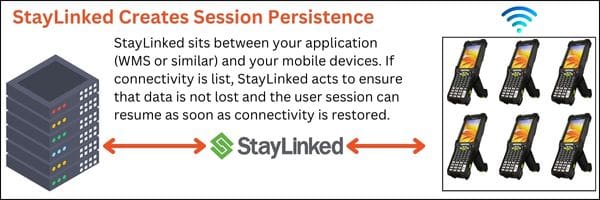
StayLinked is a software solution which creates true session persistence. With StayLinked’s session persistence method, each mobile device’s task progress is saved on a backend server, meaning that if the device loses connectivity (which would otherwise result in a session timeout), there is persistent storage of the user session data… once the device regains a connection, the session information is again available to the user, and he or she  can resume the task which was underway.

StayLinked is an industry standard session persistence solution which has been proven effective in companies worldwide. The StayLinked solution eliminates session drops along with their negative economic and other impacts. By implementing StayLinked, you’ll improve:

  • Speed
  • Reliability
  • Productivity
  • Worker Satisfaction

How Does StayLinked Create a Persistent Session?

In a nutshell, StayLinked adds a small software client at the network level which acts as a buffer between your fleet of mobile devices and the application (WMS or similar). Because this client is at the network level, it is not negatively impacted by the connection status of mobile devices. When a device loses connection, the software will wait for it to reconnect so the session can resume.

StayLinked creates session persistence

StayLinked is extremely efficient and will not slow down your mobile devices. In fact, with the reductions in active session drops, worker productivity will rise.

Discuss StayLinked and Session Persistence with CSSI

CSSI Technologies is a StayLinked partner and warehouse operations expert. If you’d like to discuss creating session persistence in your organization, please contact us to discuss StayLinked. We would be happy to arrange a live demo so that you can experience this solution yourself.

Q: What is session persistence, and why does it matter for mobile devices in the warehouse?
A. Session persistence keeps a worker’s terminal session and application data alive on a mobile device even when the connection to the WMS is temporarily lost. Instead of the session dropping and forcing a restart, the worker’s place in the workflow is preserved, so a brief network hiccup doesn’t turn into lost work or a stalled task.

Q: Why do mobile device sessions drop in the first place?
A. Dropped sessions typically stem from interruptions in device-to-host connectivity — gaps in wireless coverage, roaming between access points, or momentary breaks in the link between the handheld and the backend system. In a busy warehouse or distribution center, these interruptions are common enough that, according to StayLinked’s research, 84% of workers experience a dropped session at least once per shift.

Q: How does session persistence technology actually prevent dropped sessions?
A. StayLinked’s approach uses a host-resident server architecture (via its SmartTE product) that communicates directly with the device to keep terminal sessions and application data securely anchored on the host rather than fully dependent on a continuous live connection. When connectivity is briefly lost, the session state stays intact on the host side, so the worker’s screen and progress are simply restored once the connection re-establishes — no re-login, no re-scanning, no lost data.

Q: What does a dropped session actually cost a warehouse if it’s left unaddressed?
A. The costs add up quickly. StayLinked’s data points to over $1,400 per day in hidden costs per warehouse from dropped sessions, with resolution times averaging 20+ minutes per incident. More than 80% of surveyed workers say dropped sessions affect their ability to hit deadlines. Left unaddressed across a full year, that can translate to more than $400,000 in losses per warehouse.

Q: What business benefits can a company expect from implementing session persistence?
A. Beyond eliminating the direct downtime cost of dropped sessions, businesses typically see gains in worker productivity and morale, since employees aren’t repeatedly interrupted and forced to redo work. It also reduces the burden on IT and floor management, who otherwise spend time troubleshooting connectivity issues, and can support better employee retention by removing a persistent daily frustration for frontline warehouse staff.

Powerful Cost-Effective Work Tool for Field Service and Transportation

Big news… Earlier this year, Datalogic announced the Memor 30, a wi-fi only handheld which became an immediate great choice for inside-the-facility applications. At that time, certifications were still being sought with cellular carriers so a WWAN option was not available. But now…

Memor 35 Certified With Major US Cellular Carriers

The big news is that Datalogic now has US certification from AT&T and Verizon for the Memor 35. This means that the Memor 35 can now be used by your remote and traveling employees for applications such as field service, proof of delivery, digital forms and data capture, and remote communications.

Now you can consolidate the number of devices which your staff need to carry, because the Memor handheld can cover all of their needs!

Other Key Features of the Datalogic Memor 30 and Memor 35

The CSSI team has become familiar with this device over the past few months, and we can confidently say that it is a professional worktool packed with useful features… and offers a ton of value for the price. Key capabilities and features include:

  • Integrated data capture/barcode scanner – read barcodes as far as 32 feet away! Datalogic’s unique ‘green spot’ aimer also provides a visual indication when a barcode has been successfully ready.
  • Tough 6-inch display and a long-lasting battery which is swappable.
  • Can withstand 6 foot drops to concrete! IP65/68 sealing makes it usable in dirty environments.
  • Future-proof – The Memor 30/35 is currently shipping with Android 13, and is upgradeable through Android 18.
Datalogic Memor 30-35 topview

Set Up Your Datalogic Memor 30/35 Demo

If you are evaluating handheld touch computers, we recommend taking a look at the Memor 30 or 35. CSSI would be happy to set you up with a demo unit so that you can evaluate this unit within your business. To discuss the Memor 30/35, please contact CSSI.

Q: What’s the difference between the Datalogic Memor 30 and the Memor 35?
A. Both models share the same rugged design, Android 13 operating system, Qualcomm Octa Core 2.4GHz processor, and Halogen DE2121-ER scan engine. The key difference is cellular connectivity: the Memor 35 adds 5G WWAN, letting it operate as a standalone connected device on cellular networks, while the Memor 30 relies on WiFi 6E only. Both are available in standard-range and long-range (X) scanning configurations, so the choice mostly comes down to whether your workforce needs computers that stay connected outside WiFi coverage.

Q: What wireless capabilities does the Memor 35 offer, and why does 5G matter for a handheld computer?
A. The Memor 35 pairs WiFi 6E with integrated 5G cellular, plus Bluetooth and 360° NFC. WiFi 6E delivers faster throughput and less interference in dense warehouse or DC environments, while 5G gives the device its own cellular connection independent of on-site infrastructure. For businesses, that means workers moving between buildings, yard areas, delivery routes, or facilities without full WiFi coverage can stay connected to WMS, MES, or MDM platforms without dropouts — something the WiFi-only Memor 30 can’t do on its own.

Q: Can CSSI help with cellular and data plan solutions for my devices?
A. Yes – CSSI has a number of solutions for cellular and WAN data coverage. For many companies, we recommend eSIM solutions such as the FlexiSIM from iOnline, which does not restrict you to the coverage from just one provider. Rather, your device connection switches to whatever the strongest network is. This is ideal for devices which travel in a large geographic area where any given cellular carrier may not offer strong signal in all areas.

Q: Is the Memor 30/35 rugged enough for warehouse, cold storage, or field use?
A. Yes. Both models meet MIL-STD-810H standards for shock and vibration, carry an IP65/IP68 rating for dust and water resistance (including 30+ minutes of submersion up to 1 meter), and are built to survive repeated drops to concrete. That combination makes them suitable for cold storage, outdoor yard operations, manufacturing floors, and general distribution environments where consumer-grade devices typically fail.

Q: How long does the battery last, and can it be swapped without shutting the device down?
A. Both devices use a 4680 mAh battery that’s hot-swappable, meaning a depleted battery can be replaced without powering down or losing your session — important for multi-shift operations where devices need to stay in continuous use. The battery also supports wireless charging, giving IT teams more flexibility in how charging stations are deployed across a facility.

Q: What scanning range and barcode conditions can the Memor 30/35 handle?
A. The Halogen DE2121-ER scan engine uses DeepSight technology to read barcodes from as close as 5 cm out to 10 meters, with Green Spot feedback for scan confirmation and the ability to read damaged or dirty labels. That range and tolerance make it a good fit for both close-range piece-picking and long-range applications like reading pallet labels in high rack storage.

Honeywell’s Next-Gen Upgrade to the CK65 is Here

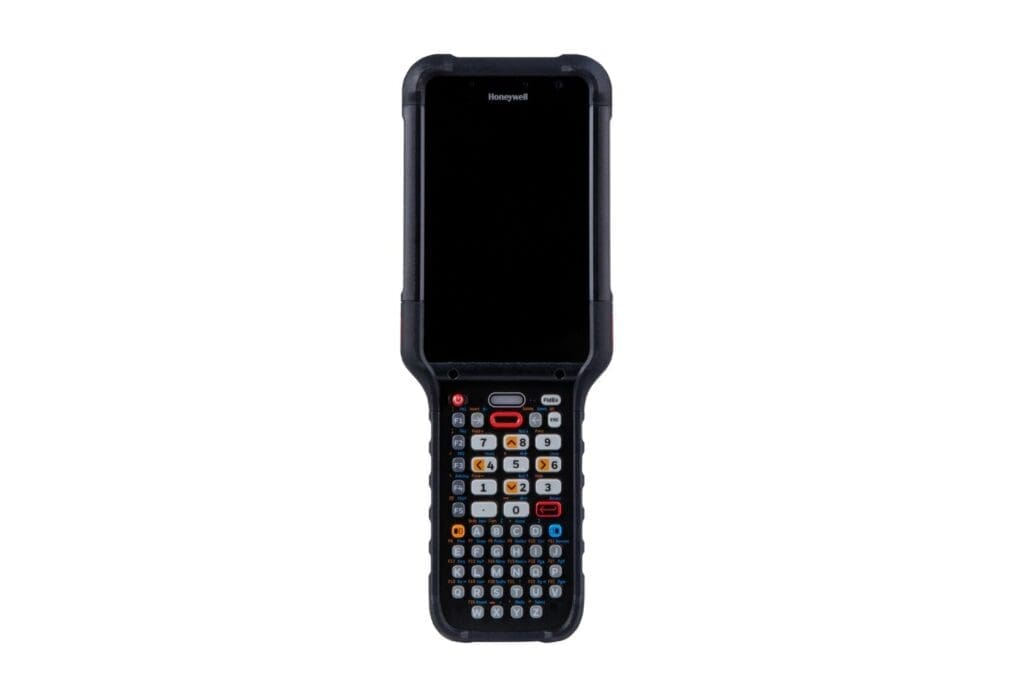
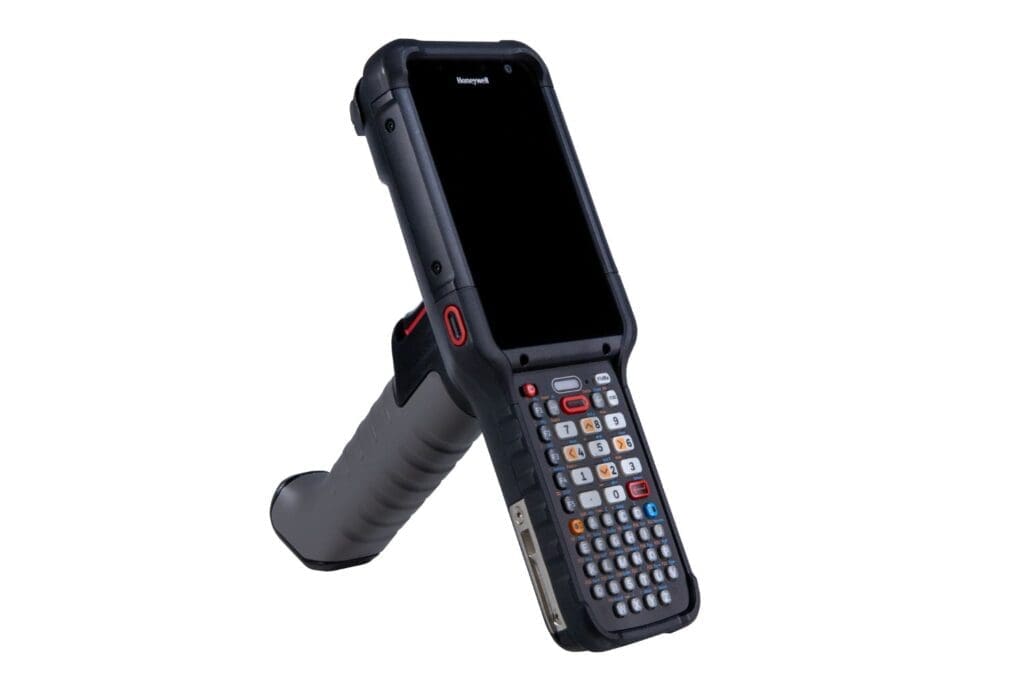
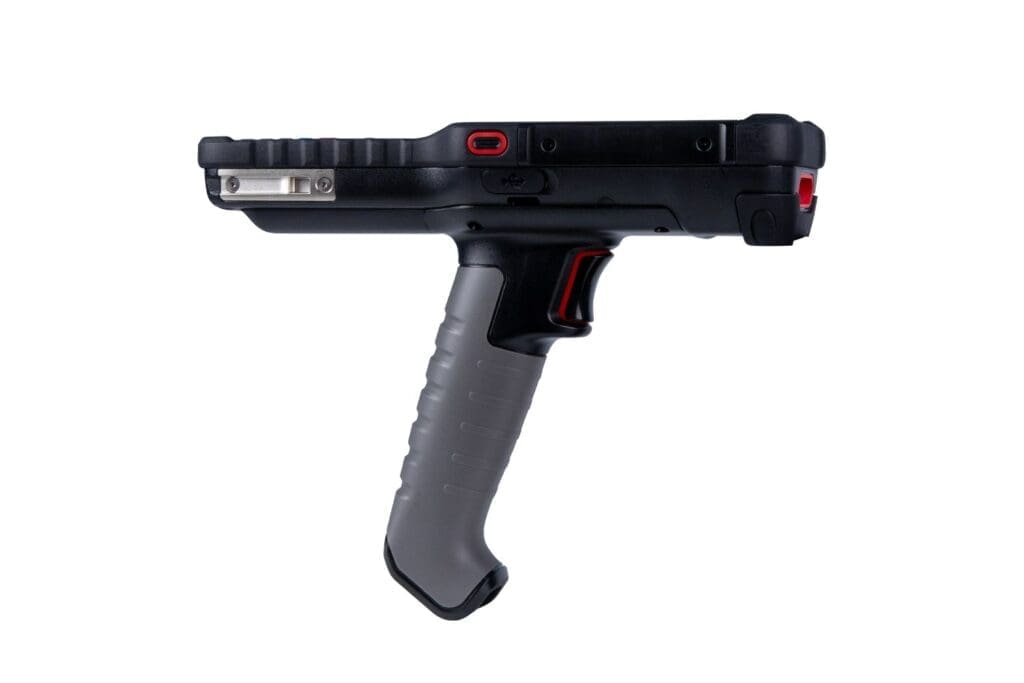
Honeywell has launched its most rugged and powerful Android handheld computer, the CK67. This model is a major update to the popular CK65 and contains many attractive new features. The CK67 will be of interest to any company seeking to update a fleet of CK75’s or CK65’s, as well as any company in need of a max-rugged handheld computer for the warehouse, DC and manufacturing floors.

CK67 Key Updates

The ultra-rugged CK67 has received a number of innovative new features and capabilities from Honeywell:

  • Durable – 8 foot drop spec, and IP65/IP68 certified.
  • Productive – barcode data capture from 3 inches up to 80 feet!
  • Rated tough – suitable for Cold Storage as well as hazardous environments.
  • Connectivity – Wifi, Public 5G, and CBRS/Private 5G. Supports push-to-talk.
  • Versatile – choose between numerous keypad configurations.
  • Future-proof – Support Android versions 14 to 18 guaranteed.

Great Applications for the CK67

Use the CK67 in rugged environments where computing mobility is needed:

  • Warehouses – including freezer and refrigerated warehouses
  • Distribution Centers
  • Depots & Yards
  • Manufacturing Floors
  • Logistics Operations
  • Loading Docks

Contact CSSI for a quote or demo of the Honeywell CK67

The team at CSSI are Honeywell experts. We’d enjoy discussing the benefits of the CK67 to you. To get a quote or set up your demo of the CK67 and to learn more, please contact CSSI.

Q: How well does the CK67 hold up to daily wear and tear on a warehouse or plant floor?
A. The CK67 is built for environments where drops, dust, and moisture are routine. It’s rated for multiple 2.4m (8ft) drops to concrete per MIL-STD-810H, exceeds 4,000 tumbles at 1m per IEC 60068-2-32, and carries IP65/IP68 ingress protection. For a business, that translates to fewer cracked screens, fewer service tickets, and less downtime pulled from warehouse and manufacturing floor operations where devices get dropped off ladders, forklifts, and conveyor lines multiple times a shift.

Q: Can the CK67 operate in cold storage or freezer warehouse environments?
A. Yes. The CK67 supports an operating range of -20°C to +50°C (-4°F to +122°F) and offers a dedicated 5800mAh battery option built for cold storage use. This makes it a viable fit for cold chain and freezer warehouse operations without requiring a separate device line, simplifying procurement and support for businesses that run mixed ambient and refrigerated facilities.

Q: What scanning capabilities does the CK67 bring to warehouse and manufacturing workflows?
A. The CK67 uses Honeywell’s FlexRange engine to read 1D/2D barcodes across standard (0-1m), mid (0-5m), and long-range (0-20m) distances, backed by an 8MP front and 13MP rear camera. In practice, this means one device can handle close-range piece-picking, mid-range pallet or bin scanning, and long-range rack or overhead label reads, reducing the need for workers to reach, climb, or carry multiple scanning tools to complete receiving, put-away, picking, and shipping tasks.

Q: How does the CK67’s connectivity support real-time inventory and production data?
A. The CK67 offers 5G (NSA and SA modes), Cat-18 4G LTE, and tri-band Wi-Fi 6E, along with integrated GPS and Bluetooth 5.3. For businesses running a WMS or MES, this level of bandwidth and low latency supports real-time inventory updates, production tracking, and scan-to-confirm workflows across large facilities or multi-building campuses, including areas with weaker Wi-Fi coverage where cellular can pick up the slack.

Q: What’s the total cost of ownership like compared to older rugged handhelds?
A. The CK67 runs on Honeywell’s Mobility Edge platform and ships with Android 14, with OS updates guaranteed through Android 18. That extended lifecycle support means a longer usable deployment window before a fleet-wide refresh is needed, plus centralized tools for device management, deployment, and security that reduce IT overhead. Combined with its ruggedness ratings, the CK67 is positioned to lower both replacement frequency and day-to-day support costs relative to consumer-grade or shorter-lifecycle devices.

Which Mobile Device Management Platform is Best for Your Business?

We have encountered more companies considering Microsoft’s Intune software for management of the rugged enterprise device fleet. The long-time market leader in this space is SOTI’s MobiControl product. Given CSSI’s expertise in device management and MDM best practices, we created an overview to help educate you on how to compare SOTI MobiControl versus Microsoft Intune.

What is Microsoft Intune?

Intune MDM is Microsoft’s endpoint management software product. Intune helps IT administrators manage user access, and it simplifies application and device management across devices. Intune is a popular choice for managing corporate computers and phones and is often being evaluated to take on management of rugged devices in the business operating environment.

What is SOTI MobiControl?

SOTI Mobicontrol

MobiControl is an enterprise mobility management platform from SOTI. MobiControl has been the most popular MDM for rugged mobile devices in warehouse, operations, field service, and transportation & logistics environments. Particularly for the rugged Android device market, SOTI is the go-to solution. MobiControl helps IT administrators perform device configuration and endpoint management for a variety of devices (different models and brands) throughout the lifecycle. MobiControl supports managing apps and content, tracking assets, and keeping devices safe, supported and secure with access control.

Initial Cautions About Intune MDM

Companies are commonly tempted by Intune’s lower cost versus SOTI MobiControl. However, there are tradeoffs and limitations which IT pros should consider.

  1. Lower price, but… : It is true that the Intune MDM is initially less expensive than MobiControl, however, it lacks features which may cost your company’s IT team large amounts of time. Feature differences are discussed further below, but consider that much of the value of MobiControl can be found in the significant time savings for your company’s IT staff.
  2. Limited to Microsoft 365 products : Intune offers limited support for Android devices, iOS, and macOS, and no support for Linux and Windows Mobile/CE. Companies with a variety of specialty devices with these OS’s may find a lack of benefit with Intune. MobiControl will handle this broader variety of OS.
  3. SOTI’s ONE Platform offers extended capabilities : While some companies use MobiControl as a stand-alone product similar to Intune, many take advantage of the larger platform of SOTI products which can offer extended functionality such as electronic forms, remote device support, printer management, and operational intelligence for deployed devices.

Key Differences Between MobiControl & Intune

At initial glance, Intune and MobiControl share much common functionality, and thus the lower initial price of Intune can be tempting. However, from the perspective of a manager of rugged enterprise mobile devices, consider these critical differences which can have substantial impact on overall value:

FeatureSOTI MobiControlMicrosoft Intune
Deployment FlexibilityDeploy MobiControl on-premise or in the Cloud via Azure or AWS.Intune can only be deployed in the cloud via Azure.
Organizational Structure (Groups & Subgroups)MobiControl enables groups/subgroup setup with a visual interface. Drag-and-drop for devices to inherit profiles without re-enrollment.Intune allows groups and subgroups, but does not provide a way to define for users aligned to a physical or logical location. Repurposing a device requires re-enrollment.
Device Tracking & LocationMobiControl tracks real-time outdoor device location. Set policies to control device data based on location.Intune uses Find My iPhone for Apple devices. No tracking/location support for non-Apple devices.
GeofencingMobiControl offers polygonal geofencing – design policies for your specific needs.Intune does not support geofencing.
File Sharing SupportMobiControl enables file sharing via File Exchange and Package Deployment.Intune does not support transferring files to and from devices.
Data CollectionSupported – support management of devices used in your business.Intune does not support data collection.
Platforms & Endpoints SupportSupports Android, iOS, macOS, Windows Mobile/CE, and Linux.Intune does not support Linux, Win Mobile/CE.
Speed Control LockdownMobiControl can lock down devices when traveling above a defined speed – ideal for forktruck and vehicle usage.Intune does not offer speed control lockdown.
Remote ControlIT Admins can easily remote into a device to provide support and resolve issues.Intune remote control requires TeamViewer, with an additional license and cost. TeamViewer doesn’t work for Android Enterprise managed devices.
Advanced JavascriptMobiControl supports JavaScript, which enables critical device actions.Intune does not support JavaScript.
Bulk Application DeploymentQuickly bulk deploy numerous applications to many devices or device groups. Intune can only deploy one application at a time to a single device or device group.

Ready to Discuss MDM, SOTI MobiControl versus Microsoft Intune?

If you are exploring mobile device management solutions or struggling to manage your company’s fleet of mobile devices, we recommend a conversation with one of CSSI’s device management experts. We offer everything from ad hoc MDM consulting to robust device lifecycle management services. We can help with device enrollment, device configuration, and ongoing device management. In an initial conversation, we can explore your needs and make recommendations on the ideal MDM path for your business. Please contact us to discuss mobile device management.

Q: What’s the core difference between SOTI MobiControl and Microsoft Intune?
A. MobiControl is part of the SOTI ONE Platform, an integrated management solution built to maximize the ROI of business-critical mobile devices and printers. Intune is a cloud-based, mobile-focused endpoint management solution designed to unify management workflows across a business’s connected devices. In short, MobiControl is purpose-built around mission-critical and rugged device fleets, while Intune is oriented toward broader enterprise endpoint management.

Q: Which platform offers stronger remote support and troubleshooting capabilities?
A. MobiControl supports remote access across 350+ device manufacturers, including rugged and unattended devices like RFID scanners and customer experience displays. Intune’s Remote Help is more limited — it covers enrolled and unenrolled Windows PCs and Android enterprise-dedicated devices, and offers view-only access for macOS.

Q: Can either platform track device location in real time?
A. MobiControl includes geofencing, live tracking, and indoor location features, letting businesses locate devices in real time and access historical device and business data. Intune does not offer real-time location tracking, which can reduce visibility into lost or misplaced devices.

Q: How do the two platforms compare on operational intelligence and analytics?
A. MobiControl integrates with SOTI XSight for diagnostic intelligence, offering customized dashboards that track app performance, battery health, network status, and data usage. Intune offers Advanced Analytics, which provides near-real-time insights into connected devices and managed apps.

Q: What device types and operating systems does each platform support?
A. MobiControl supports a wide range of device manufacturers and form factors, including rugged and IoT/unattended devices, across Android, iOS, iPadOS, macOS, Windows (including legacy Windows Embedded), and Linux. Intune is more focused on modern device and app management for BYOD scenarios, primarily covering Windows, Android, and macOS.

Q: What additional tools or solutions come bundled with each platform?
A. MobiControl users get access to SOTI Identity for secure access management, SOTI Pulse for community collaboration, and the option to integrate SOTI XSight. The Microsoft Intune Suite bundles Microsoft Tunnel for mobile application management, Enterprise Application Management, Microsoft Cloud PKI, and integration with Microsoft 365 and Microsoft Security products.

Q: Why might businesses using Intune still need third-party tools?
A. According to the article, many Intune users end up relying on separate third-party solutions for remote access, diagnostics, and custom workflows. SOTI positions MobiControl’s integrated platform as a way to reduce this fragmentation by covering those capabilities natively.

Q: Which businesses is each platform best suited for?
A. MobiControl is geared toward organizations managing mission-critical or rugged equipment and diverse device fleets where operational efficiency and device control are priorities — common in warehousing, field service, and logistics-type environments. Intune is better suited to enterprise endpoint management centered on cloud-native workflows and deep integration with the Microsoft ecosystem.

Announcing the Zebra ET60 Windows Tablet

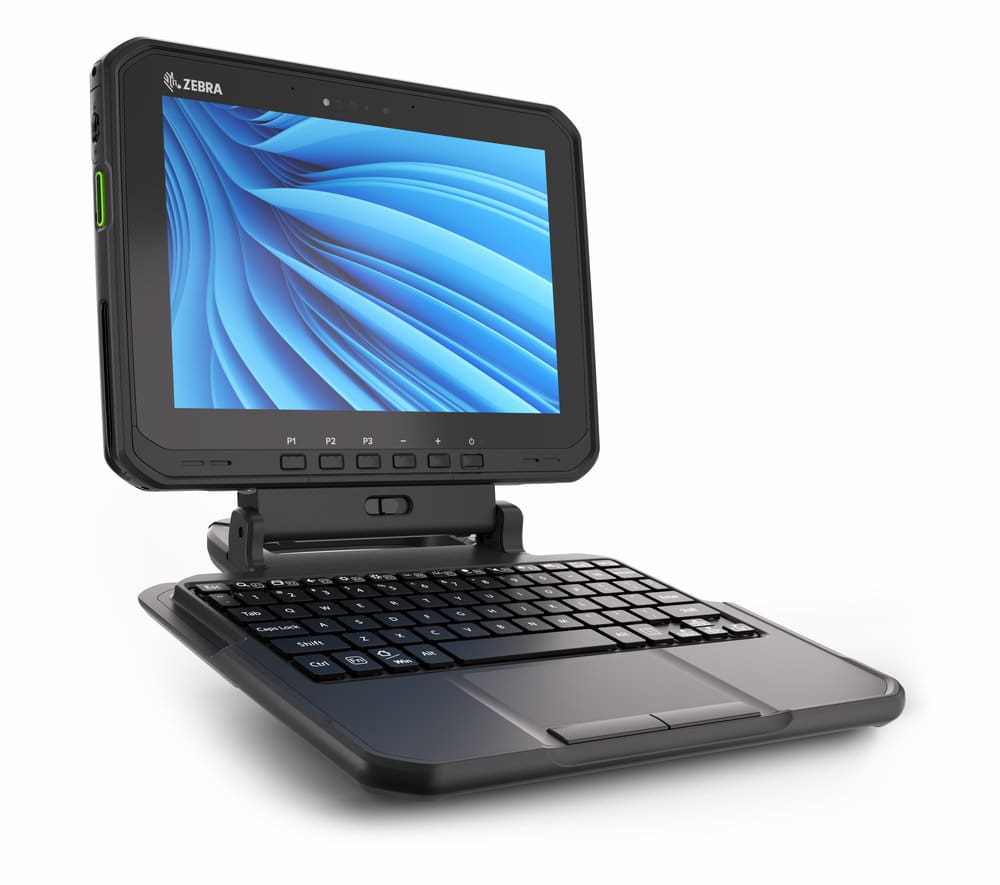
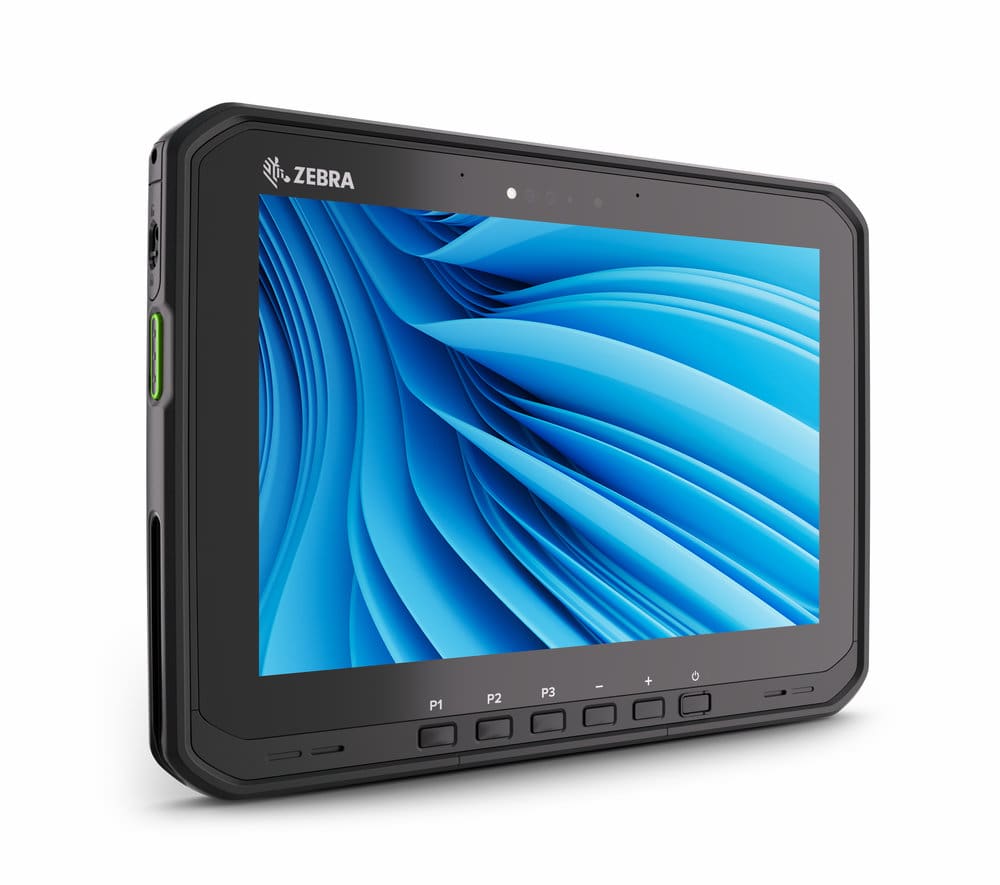
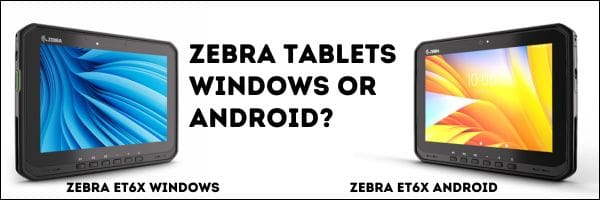
Zebra’s ET6x Tablet has already been a big hit in its Android configuration , but now Zebra Technologies has built on that success with the introduction of a Windows operating system version! There are 2 models – the ET60W is a wi-fi enabled mobile computing device, and the ET65W offers cellular connectivity. It’s a reliable rugged tablet choice.

Key Features of the Zebra’s Windows ET60/ET65

  • Built on the Intel’s next generation Core Ultra platform with Intel Adaptive Boost — AI applications can run up to 70% faster than prior Intel generation processors and require less battery power to run AI apps.
  • Integrated barcode scanner with Zebra’s leading data capture technology
  • AI-enabled touchscreen and advanced sensing technology deliver pinpoint accuracy and instant response times whether workers are using bare fingers, heavy gloves, active or passive stylus.
  • AI-powered audio boosts noise identification and suppression to a new level, ideal for the loudest working environments.
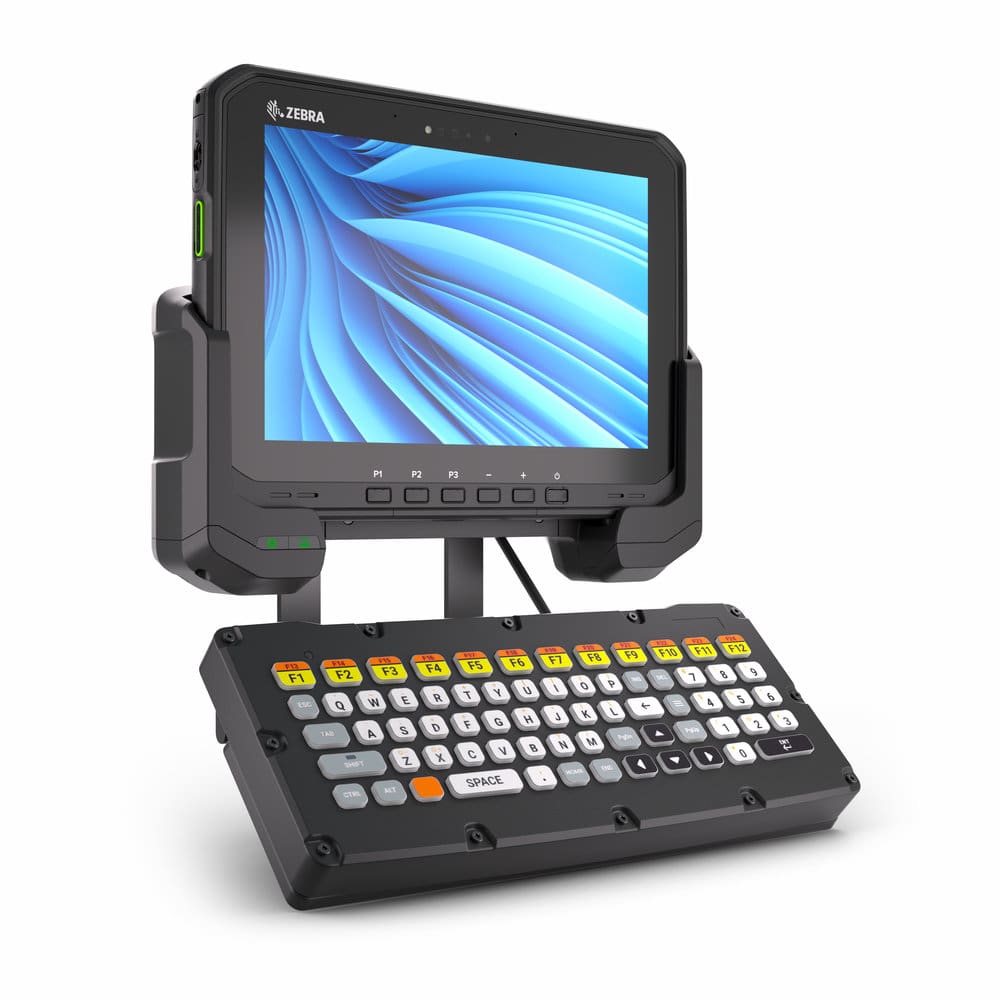
  • Enhanced versatility – Use the ET6x as a standalone tablet, 2-in-1 laptop alternative with friction hinge keyboard, or vehicle mount computer with patent-pending vehicle dock.
  • Fastest Wi-Fi connectivity with Wi-Fi 7 that offers 5x the speed and 2x the bandwidth of Wi-Fi 6.

Zebra ET60W and ET65W Include Dedicated AI Engine

These ET60W/ET65W rugged Windows tablets include cutting-edge AI features which will improve workflows, productivity, and worder job satisfaction and more. The ET6x rugged tablet is built for business, and includes a dedicated AI engine that runs the new generation of processing intensive AI apps as well as AI technology that expands the functionality of key features, including the touchscreen and audio. Help your customer’s transform workflows, optimize resources and elevate their frontline with Zebra’s AI-driven tablets – the ET60W and ET65W.

Applications for the ET6x Windows Zebra Tablet

We have already seen the Android version of the ET6x becoming a popular choice in warehouse applications. This will continue with the new Windows version for companies which need a full version of Windows in order to run key applications. The ET6x family can be fork truck or material handling vehicle mounted with Zebra’s specially designed mount and is also able to be utilized in refrigerated and freezer environments.

YouTube player

The rugged ET60w/ET65w is also a great choice for manufacturing applications. It’s tough — able to withstand 5 foot drops to concrete, and exceeds MIL-STD-810H. Integrated data capture and security features make this a great choice for your on-the-go workers and managers.

Outside of the building, you can utilize CBRS and Private 5G connectivity, which is a great option for operations where Wi-Fi can not cover the entire footprint.

YouTube player

Ready to Discuss Zebra’s Windows Tablet Options?

Zebra has been known for rugged Android tablets and hand held computers, so it’s great to see additional versions offering the Windows OS. If you’d like to discuss rugged Windows business tablets, please contact the mobile computer and tablet computer experts at CSSI . We will work with you to understand your requirements and will pair you with the right tablet for your job.

Q: What operating system does the ET60W run, and why would a business choose it over the Android-based ET6x models?
A. The ET60W runs Windows 11 Professional (64-bit) or Windows 11 IoT Enterprise LTSC, versus the Android options available on other ET6x models. Businesses that rely on legacy Windows-only line-of-business software, need long-term OS support (LTSC builds are supported for years without forced feature updates), or want a device that can also serve as a laptop replacement typically choose the Windows version over Android.

Q: How rugged is the ET60W, and can it hold up in cold storage or outdoor warehouse conditions?
A. The ET60W is built for industrial environments: it’s rated for 5-foot (1.5 m) drops to concrete, exceeds MIL-STD-810H standards, and carries an IP66 seal against dust and water. Its operating range spans -20°F to +145°F (-29°C to +63°C), which covers freezer and cold-storage use, and it’s also tested against vibration and salt fog for outdoor or transportation settings.

Q: What wireless connectivity does the ET60W support for warehouse and fleet operations?
A. It includes Wi-Fi 7 (2.4/5/6GHz bands, up to 5.8 Gbps) and Bluetooth 5.4. For wide-area connectivity, the ET65W variant adds integrated 5G/LTE with dual SIM support (eSIM plus nano SIM), including compatibility with private 5G/CBRS networks — useful for large campuses or fleets where Wi-Fi coverage alone isn’t reliable.

Q: Can the ET60W realistically replace a laptop for mobile or field workers?
A. Yes. It’s available with Intel Core Ultra 5 or Core Ultra 7 processors, up to 32GB of RAM, and up to 2TB of NVMe SSD storage — comparable to a business laptop. Paired with the optional friction-hinge keyboard accessory, it converts into a 2-in-1 device, and its two Thunderbolt 4/USB4 ports plus a USB 3.1 Type-A port support the same peripherals and docking setups as a standard laptop.

Q: What’s the actual difference between the ET60W and the ET65W?
A. The two share the same processor, display, ruggedness, and Wi-Fi/Bluetooth specs. The only meaningful difference is that the ET65W adds integrated Wireless WAN (5G/LTE) for connectivity outside Wi-Fi range; the ET60W is Wi-Fi/Bluetooth only. Businesses that operate entirely within a Wi-Fi-covered facility can save cost with the ET60W, while those with field or multi-site mobile workers typically need the ET65W.

Short on time or capital? No worries, you can still make an impact in the warehouse

As we write this piece, we find it hard to believe that September is already upon us. That means that time is fleeting… workdays will seem shorter and the calendar will quickly move to the holidays and end-of-year. For those of us in IT and operations, that means there is limited time to get things done prior to New Year’s Eve. Just as limiting, there may also be little unallocated capital left in the budget for new projects.

Thus, we’ve created a list of several high-impact projects which it are possible to get done in the final quarter of the year, without having to allocate significant time or investment capital. Some of these will provide immediate benefits, and some will set the stage for significant impact in the New Year. All will make you a warehouse hero!

Don’t have the time to tackle these yourself? Don’t worry, CSSI can carry the load to get these done so that you are free to execute on your company game plan.

Let’s take a look at some projects you can get started very quickly...

improve wi-fi coverage

1. Improve Spotty Wi-Fi Coverage

Weak or inconsistent wireless coverage can be a leaky bucket for your productivity. The team gets used to it, and may have even stopped complaining, but the drip-drip of time loss is present every day. It’s possible that your problems can be solved with minor adjustments and fine-tuning. We often find that a quick Wi-Fi survey can reveal improvement opportunities which may not even require new or additional equipment.

Our team at CSSI deals with Wi-Fi challenges every day, and we’d be happy to help you trouble-shoot your issues. Contact us for Wi-Fi help.

See our prior post on the 6 most common warehouse Wi-Fi problems.

Conduct an RFID Pilot Project

2. Conduct at RFID pilot project

No supply chain technology has been hotter than RFID. Major retailers are beginning to require RFID tags, and companies are discovering the massive time-savings which can be unlocked with RFID.

Here’s the challenge – RFID can be time-consuming and expensive to implement. However, regardless of your ultimate RFID destination, we recommend starting with a low-cost pilot project. Conducting a pilot gives you a basis to understand tag readability in your environment, helps you define specific workflows which will benefit the most from RFID, and allows you to understand challenges which must be overcome for broader rollouts. With just a few antennas and some basic software,

CSSI can help you pick a simple workflow where you can implement RFID. By starting now, you not only get some short-term benefits, but you also set the stage for more significant rollouts in the future. Contact us to discuss RFID.

See our prior post on how to begin your RFID journey with an RFID pilot project.

Telnet Screen Modernization

3. Use Telnet / Terminal Emulation? Modernize a Few Key Screens

Significant numbers of companies utilize telnet/TE on their mobile computers and vehicle computers. In many of these companies, the screens provided to operators have been unchanged for years. However, new telnet screen modernization technologies available from CSSI can transform your users’ screens… and this does not require making ANY changes to your back-end systems.

Imagine screens which are easier to interact with, easier to train new employees, and save time by reducing unnecessary taps and clicks. Modernization can be conducted as a pilot on a small number of screens for a very modest investment, allowing you to test the benefits before considering larger projects. Contact CSSI to discuss TE screen modernization.

See our prior post about telnet modernization and its value to your business.

Paper to electronic form conversion

4. Convert a Key Paper Form to Electronic

Every business seems to run on paper forms and clipboards. But paper is by nature slow, error-prone, and requires time-wasting data-entry. It’s quick and economical to convert to electronic forms which a) ensure the correct information is being entered, and b) provides immediate information access to those who need it.

Pick one of your business’s commonly used forms and discuss with CSSI your options for serving it on a tablet, handheld, or PC. Contact us to discuss electronic forms.

See our prior post on the advantages of electronic forms over traditional ‘clip-board’ paper forms.

Standardize Mobile Device Configurations with MDM

5. Standardize Your Mobile Device Configurations

As mobile device fleets grow, it becomes ever more important to standardize configurations. This is critical both for security and to preserve the IT teams’ ability to manage and provide technical support for the deployed devices. Mobile device management (MDM) is a software tool which makes it easy to manage far-flung device deployments, as long as you have created your device profile.

CSSI can support your adoption and improvement of MDM, both on an ad-hoc basis and as part of our device lifecycle management program. This is a project which you can get done without a great amount of time and effort when you work with CSSI. Contact CSSI to discuss MDM.

See our prior post on Mobile Device Management and the benefits of standard device configurations.

Wearable scanners pilot

6. Conduct a Pilot Project with Wearable Scanners

If you’re not already using wearable scanners, you’ve probably heard the buzz. Time studies show that wearables can dramatically enhance picking productivity. The best way to get started with wearables is to conduct a pilot. CSSI can help you select a wearable for your team to use in order to evaluate its effectiveness.

If you already use handheld scanners or mobile computers, the adoption of wearables is an easy next step, once you prove that the investment pays off with higher productivity. Contact CSSI to discuss wearable scanners.

See our prior post on the benefits of wearable scanners for your warehouse operations.

prepare for android 11 and 13

Bonus: Prepare for the future by testing your device configurations in Android 11 or 13

Here’s a bonus suggestion for you – if your company is running mobile devices with Android 10 or earlier, we recommend that you start now identifying any issues you will have deploying units with Android 11 and higher. Why? Because newer versions of Android have added security features which have been shown to cause havoc and break many applications which ran on 10 or earlier. CSSI has been regularly helping companies navigate this challenge.

The best way to start is by speaking with us about your current device profiles so that we can help to proactively identify upgrade challenges. You will need to have these issues resolved prior to being able to buy newer Android devices. Contact us to speak about testing Android 11 and higher in your environment.

See our prior post on challenges you may experience when you begin to implement mobile devices running Android 11, 13, and beyond.

Contact CSSI for Warehouse Success by Year-End

If you’d like to pick an improvement opportunity to tackle between now and the end of year, we’d be glad to help. Just contact CSSI to consult with us on your needs, and we will propose options for you.

Q: What’s the first step in improving warehouse efficiency?
A. Start with an audit. Measure how long key processes actually take and evaluate your current level of organizational efficiency before changing anything. This gives you a baseline to compare against once you make improvements, and it often reveals bottlenecks — like disorganized inventory or slow receiving — that aren’t obvious from day-to-day operations.

Q: How can technology improve warehouse productivity?
A. Automation and tracking technology are two of the biggest levers. Robotic automation can boost productivity while cutting costs, and tools like barcode or RFID-based warehouse management systems support automated pick lists and more accurate inventory counts. Advanced shipping notifications (ASN) also help by giving warehouses advance electronic notice of incoming shipments, which improves staffing and fulfillment planning.

Q: What can businesses do to reduce picking errors?
A. Two practical steps stand out: avoid mixing multiple SKUs in a single bin location, since hunting through a mixed bin can add 15+ seconds to each pick, and implement a warehouse management system with built-in verification alerts that flag labeling issues or missing items before they ship. Systematizing workstations so tools and materials have a consistent place also cuts down on errors.

Q: How does warehouse layout affect operational speed?
A. Layout has a direct impact on travel time, which can account for up to 60% of a picker’s daily activity. Businesses can reduce this by positioning fast-moving items near shipping, grouping frequently shipped items together, maximizing vertical storage space, and re-slotting inventory often so popular SKUs stay in the most accessible spots.

Q: What role does employee training play in warehouse improvement?
A. It’s foundational. Even strong technology and processes fall short if employees don’t understand how to use them, so ongoing training on both systems and safety procedures is essential. This is especially true for safety, where rigorous, consistent training helps associates recognize predictable hazards like slips, trips, and falls before they cause an incident.

Android versus Windows Tablets – The Case for Each

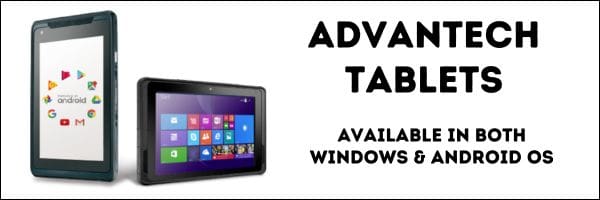
If you are preparing to purchase rugged tablet PCs for your business, one of your first decisions is likely to consider which OS you need. In the world of rugged business enterprise tablets, that means selecting between the Android and Windows operating system.

Both Android and Windows are acceptable choices, but each has its own advantages and disadvantages. The context of your business needs matters, because your choice can impact productivity, security, and overall business operations. To make an informed decision, it’s essential to first understand what an “enterprise-grade” tablet entails, and then look at key factors to consider when choosing between Android and Windows.

Zebra Android Tablet and Windows Tablet PCs

What is an Enterprise-Grade Tablet?

An enterprise-grade tablet is designed specifically for use in business environments. These devices go beyond consumer-level tablets by offering enhanced security features, better build quality, robust support for business applications, and the ability to integrate seamlessly with corporate IT infrastructure. Enterprise tablets are built to withstand the demands of daily business use, including bumps and scrapes, hours of continuous operation, and your need for reliable, long-term performance.

Advantages and Disadvantages of Android Tablets

Android has become the dominant player in the enterprise handheld world and is a common choice in the tablet world as well. There are good reasons for that:

Advantages:

  1. Cost-Effective: A rugged Android tablet generally comes at a lower price point than the Windows counterpart, making it a attractive option for companies looking to equip large teams without breaking the bank.
  2. Customization: Android is known for its flexibility and customization options. IT departments can tailor the user interface and functionality to meet specific business needs. This includes custom apps, configurations, and management tools.
  3. Wide Range of Form Factors & Options: The Android ecosystem offers a variety of devices from different manufacturers, allowing businesses to choose a tablet that best fits their requirements in terms of size, battery life, and durability.
  4. Google Services Integration: For companies heavily invested in Google Workspace and other Google services, Android tablets provide seamless integration, enhancing productivity and collaboration.

Disadvantages:

  1. Fragmentation: The wide Android device variety can lead to fragmentation issues, where different devices run different versions of the OS. This can complicate app compatibility and security management. This problem can be avoided with mobile device management (MDM) and tight organizational control of device configurations.
  2. Security Concerns: While the Android OS has made significant strides in security, it is sometimes still perceived as more vulnerable to malware and other security threats compared to Windows, especially in an enterprise setting. Avoid security risks with lockdown screens and blocking users from unwanted applications.
  3. Limited Enterprise Software Support: While the Android OS supports many business apps, it may lack compatibility with certain enterprise-grade software solutions that are more readily available on Windows.
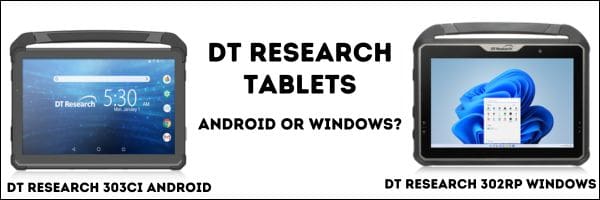
DT Research Android and Windows Tablet PCs

Advantages and Disadvantages of Windows Tablets

The odds are your company desktops and laptops run on the Microsoft Windows OS. Thus, it might be necessary to use Windows tablets in order to run your Windows applications. Some of the Windows tablet advantages are:

Advantages:

  1. Full Desktop Experience: A Windows device offers a familiar desktop experience with access to the full suite of Microsoft Office applications and other Windows-based software. This is ideal for businesses that rely heavily on these tools.
  2. Enhanced Security: Windows tablets typically come with robust security features, including BitLocker, Windows Defender, and support for enterprise-grade security policies. These features make them a strong choice for industries with stringent security requirements.
  3. Integration with Existing Infrastructure: Windows tablets can easily integrate with existing corporate networks, servers, and IT management tools. This seamless integration is beneficial for businesses that already use Windows PCs and servers.
  4. Versatility: Many Windows tablets are 2-in-1 devices, allowing them to function as both a tablet and a laptop. This versatility can increase productivity by providing the flexibility to switch between different modes of work.

Disadvantages:

  1. Higher Cost: Windows tablets tend to be more expensive, which could be a significant consideration for businesses with tight budgets, especially when purchasing in bulk.
  2. Less App Diversity: While Windows tablets support a wide range of enterprise applications, the Microsoft Store offers fewer apps than the Google Play Store. This could limit options for certain specialized applications.
  3. Heavier and Less Portable: Windows tablets are often bulkier and heavier than their Android counterparts, especially when considering 2-in-1 models. This might be a drawback for field workers or those who need a highly portable device.
  4. Less Flexibility to Control with MDM: Windows won’t offer the same level of control via your mobile device management software.

Key Considerations for Making the Decision

So how to decide whether Windows or Android is right for your rugged tablets?

  1. Business Needs and Use Cases: Consider how the tablets will be used within your organization. For example, if your workforce primarily needs access to email, cloud-based apps, and collaboration tools, Android tablets might suffice. However, if your team relies on specific Windows applications or requires a device that can double as a laptop, Microsoft Windows tablets might be the better choice.
  2. Security Requirements: Evaluate your organization’s security needs. If your industry is highly regulated, or if data security is a top priority, Windows tablets might offer the enhanced security features you need.
  3. Integration with Your Systems and Software: Think about how the tablets will fit into your current IT ecosystem. Do you have Windows-only applications which must run on the tablet? Or will you utilize web applications which provide you with the option of using Android?
  4. Budget: Factor in the total cost of ownership, including the initial purchase price, software licenses, and potential support costs. An Android rugged tablet is generally cheaper (yet can be extremely rugged), which can be a deciding factor for many business use-cases.
  5. User Experience: Consider the learning curve for your employees. If your team is already familiar with Windows PCs, transitioning to Windows OS tablets might be smoother. On the other hand, if your team is accustomed to Android apps and smartphones, they might prefer the Android experience on tablets.

Ready To Test Enterprise Tablet PCs?

You can start with a conversation with one of our tablet experts at CSSI. Our team can review your needs and make recommendations on tablet models. Once you test and select the best tablet, you’ll value having devices which fully align with your business needs. To discuss both Android tablets and Windows tablets, please contact CSSI.

Q: Is Windows or Android cheaper to deploy for our business?
A. Sticker price isn’t the full story. Total cost of ownership depends on licensing fees, battery life and shift-charging downtime, and how soon the device needs to be refreshed or replaced. A less expensive tablet can end up costing more if it requires earlier replacement, app redevelopment, or extra IT support down the line, so it’s worth comparing lifecycle costs rather than just the upfront price when weighing Windows against Android.

Q: Which OS is more secure and easier to manage across our fleet?
A. Security and manageability are no longer major differentiators between the two platforms. Both Windows and Android now integrate with enterprise mobility management (MDM/UEM) tools such as SOTI, which let IT teams manage apps, policies, and visibility from a single console across mixed device fleets. The better fit comes down to your existing software environment rather than a security gap between the operating systems.

Q: Will our existing business software run on these tablets?
A. This is often the deciding factor. Windows tends to be the stronger choice when a business relies on legacy enterprise applications like SAP, ERP, WMS, or MES systems, since it’s built to run that existing software without redevelopment. Android is better suited to modern, mobile-first applications and is a common choice for logistics, field service, and warehouse operations that prioritize intuitive touch interfaces over legacy compatibility.

Q: How long will these devices be supported before we need to upgrade?
A. Lifecycle and support planning is one of the most important considerations. Windows 11 IoT Enterprise LTSC offers a fixed lifecycle policy with predictable servicing rather than frequent forced updates, which suits long-term deployments. Android’s support timeline depends on the device manufacturer and Google Mobile Services (GMS) certification schedules, and commercial Android devices often follow consumer-style refresh cycles, which can create support gaps partway through a deployment if not planned for carefully.

Q: Which OS is the better fit for our specific use case?
A. It depends on the environment. Windows tends to be the better fit for manufacturing, warehousing, and port operations running established WMS or ERP systems. Android tends to be the better fit for logistics, field service, and transportation work where battery efficiency, touch-first design, and features like glove-touch operation, barcode scanning, and NFC support matter most for mobile workflows.

Have You Hit a Wall When Deploying New Mobile Devices With Android 11 or 13?

Now that new mobile devices ship with Android 11 or Android 13 installed, we regularly hear from companies which haven’t recently deployed new devices…

  • Help!
  • My installation barcodes don’t work!
  • My MDM deployment package doesn’t work!
  • My software doesn’t work!
  • I upgraded my old handhelds, and now my data is gone!

Android is continually evolving, and there are changes, including tighter security, in 11 & 13 which can cause major issues if you are unaware of best practices for upgrading. We are writing this piece to make you aware of these issues and help you prepare.

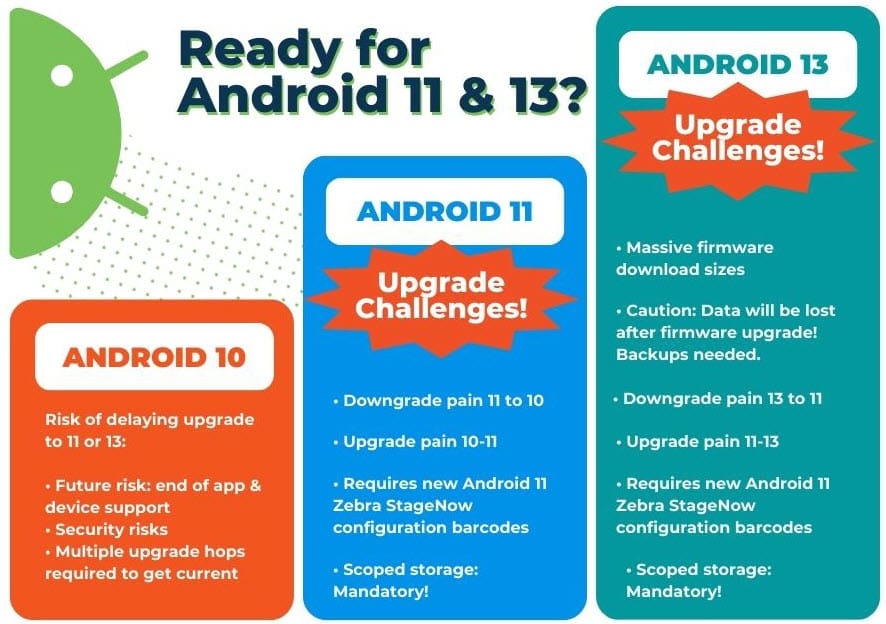
Android 11 and Android 13 upgrade challenges from Android 10.

Why Upgrade to Android 11 or 13?

First: why upgrade at all?

Android moves on a faster and more frequent upgrade schedule than you may have been accustomed to with Windows Mobile or CE. There is an annual major update (new version number) as well as frequent smaller updates and patches throughout the year. Generally, we recommend that you seek to upgrade at least annually and stay close to the current version.

  • Security & features: New versions of Android offer continually improving device security, and patch bugs which may otherwise be exploited. New features and capabilities are added regularly.
  • Application and device support: At a certain point, devices and applications will cease to support older versions of Android, meaning that you will eventually be forced to upgrade when you purchase new devices which can’t be downgraded far enough.
  • More future upgrade pain the longer you wait: The further you fall behind, the more upgrade hops you will have to make to get current. If you are currently using Android 10, there are already at least 3 hops required to get to Android 13.

Scoped Storage: Mandatory in Android 11 / Android 13

As of Android 11, scoped storage is mandatory

In recent Android versions, a new security measure has been implemented called ‘scoped storage‘. This was recommended in Android 10 but is now mandatory in 11 and beyond. Scoped storage secures device and user data by restricting an application’s ability to store and access files on the device.

This can be a significant problem for older applications written prior to this requirement, as these applications will break when unable to access necessary data.

If you haven’t updated your software recently, or are running software you developed in-house, you need to check compatibility before adopting Android 11 and higher.

CSSI can help you work through scoped storage issues, as we have developed workarounds for several customers, and can also help with software customization.

New StageNow Configuration Barcodes Required for both Android 11 and 13

New configuration barcodes are needed for Android 11 and 13

Often, the first signs of a problem occur when attempting to configure a new Zebra device with StageNow barcodes created for Android 10, which will not work for 11 or 13. You will need to create new deployment barcodes. CSSI can assist with this task and can save you time figuring out the necessary changes.

Note that there are also changes in file formats:

  • Android 10: XML
  • Android 11: XML or JSON
  • Android 13: JSON format only

Thus, you will need to save your data in a JSON format for Zebra StageNow barcodes used for Android 13 onwards.

Challenges Specific to Android 13

Android 13 warning: data wiped on upgrade and large firmware download size.

We’d like to advise you to prepare for data loss in the Android 13 firmware upgrade. Those who are unaware may be unpleasantly surprised to find that device data was wiped during the upgrade. As a result, it is important to back up your device data to an external source prior to upgrading!

We have also found that firmware download sizes for Android 13 are massive (we’ve seen >2 GB). If you are upgrading multiple devices, you can choke your network for hours. CSSI can help with workarounds to avoid this situation.

What If You Just Stay On Android 10?

So why not avoid the trouble and just stay on Android 10? In the near term, this may be an option for you (after taking into consideration the security risks addressed above), but please be aware, eventually, you will be forced to upgrade by hardware and software requirements, and in the meantime:

There is downgrade pain for both new and repaired mobile devices

If you are either a) purchasing new additional devices, or b) sending devices for repair which will be returned from the manufacturer’s repair depot, these devices will arrive with the manufacturer’s latest OS standard. This will mean that newly purchased devices will arrive with 11 or 13, and devices that you send for repair will be returned to you with 11 or 13, even if you sent them for repair with 10 installed!

This means that you will then have to repeatedly downgrade these devices in order to deploy with your current barcodes and software. Downgrading may require multiple hops, just as upgrading may require multiple hops, depending on how far you are from the current standard. This will get increasingly time-consuming for your IT team. CSSI can help you with this process as a short-term fix, particularly if you are waiting on software updates which prevent 11/13 adoption, but it may be a better use of your time and resources to instead upgrade your OS for all of your devices.

CSSI Can Help With Your Android Upgrades

CSSI’s mobile computer experts are experienced in the deployment of Android devices. We can help with OS upgrades, device configurations, MDM support, and trouble-shooting/workarounds for your device challenges. To get technical support for your mobile devices, please contact CSSI.

Q: Why should businesses be cautious before upgrading their fleet of rugged Android devices to Android 11?
A. Android 11 introduces changes that can break enterprise applications your team relies on every day, particularly warehouse management system (WMS) software and other apps used for scanning, inventory, and logistics. Moving too quickly, without testing, can create operational disruptions on the warehouse floor or in the field.

Q: What is the most significant compatibility issue with Android 11 for enterprise apps?
A. Android 11 no longer allows most applications to retrieve a device’s MAC address directly from the OS. Because many WMS and inventory-tracking applications use the MAC address to identify individual devices, this change can cause those apps to stop functioning correctly after the upgrade — even if everything else appears to work normally.

Q: Are there other technical changes in Android 11 that could affect our devices?
A. Yes. Android 11 also introduces scoped storage, which limits how much of the device’s memory an application can access and confines apps to more isolated storage sandboxes. Older or legacy line-of-business applications that weren’t built with these restrictions in mind may run into errors or reduced functionality.

Q: If our software depends on the MAC address, what are our options?
A. There are a few paths forward: stay on Android 10 until your software vendor addresses the issue, work with your application developer to replace MAC address dependency with an alternative device identifier (such as an IP address), or use privileged system-level applications, which in some cases retain access to the MAC address even under Android 11’s restrictions.

Q: What should we do before rolling out Android 11 across our device fleet?
A. Test thoroughly on a small batch of devices before any wider deployment, and check with your software vendors — especially if you use custom or smaller third-party applications — to confirm Android 11 compatibility. It’s also worth remembering that rugged device manufacturers (like Zebra) typically lag behind consumer Android releases, so don’t assume a new OS version is fully field-ready the moment it’s available. Consulting with a technical services partner before upgrading can help you avoid downtime.

SOTI MobiControl Version 15 Approaches End of Life

If your business uses SOTI MobiControl as a mobile device management (MDM) and remote control solution for your enterprise devices, please be aware of many upcoming changes to SOTI’s licensing program and version support. As an overview, SOTI continues to advance its software and product offering, and has now announced an end-of-life date for MobiControl version 15 on September 1, 2025. If you are running version 15, you will want to work with CSSI for assistance and support in moving your enrolled devices to the latest version of MobiControl. We recommend getting ahead of the upcoming changes, as it often takes some time to upgrade and test to ensure minimal disruption to your end users.

What is SOTI?

Soti is an enterprise mobile management solution, providing a cloud-based platform from which fleets of widely distributed enterprise mobile devices can be managed from a ‘single pane of glass’. CSSI is a certfied SOTI partner, using the SOTI MobiControl solution to manage, deploy, and troubleshoot android enterprise devices for customers. 

Summary of Upcoming Key SOTI Dates

ProductEffective Date
End of Sales – SOTI Perpetual Licensing and Perpetual Maintenance SKUs09/01/2024
End of Support – Printer Management with SOTI MobiControl02/01/2025
End of Life – SOTI MobiControl Version 1509/01/2025
End of Service for Perpetual Licensing and SOTI Perpetual Maintenance SKUs09/01/2025

SOTI Ends Perpetual Licensing and Perpetual Maintenance

SOTI has previously announced an end to its perpetual licensing and maintenance offerings. This change is effective Sept. 1, 2024. If you believe that you have not yet migrated, please contact CSSI for assistance. We have worked with many clients to get to a current SOTI product offering.

End of Support for MobiControl Printer Management

SOTI is also in the process of ending printer management through MobiControl – this will transition to SOTI Connect. As of Feb. 1, 2025, any Zebra printers managed by MobiControl will need to transition to SOTI Connect. If you are affected by this change, please contact CSSI for help with your enrolled devices.

CSSI Offers MDM and SOTI Expertise

CSSI uses SOTI MobiControl enterprise mobility management software as a key element of its device lifecycle management and remote device support service offering for Android devices. Our team is experienced in configuring, deploying, and managing devices via SOTI MobiControl. If you need SOTI help, or if you would like to discuss CSSI taking over management of your mobile devices, please contact us for a demonstration.

Q: How does SOTI MobiControl help reduce operational downtime for field workers?
A. MobiControl gives IT teams full visibility into device location, performance, and security posture across Android, iOS, macOS, Windows, and Linux devices. When an issue arises, IT can diagnose and resolve it remotely rather than waiting for a device to be physically returned, which keeps field workers, drivers, and warehouse staff productive instead of sidelined by device downtime.

Q: Can MobiControl support the different types of devices and operating systems our business already uses?
A. Yes. MobiControl is a true multi-OS Enterprise Mobility Management (EMM) platform that manages Android, iOS, macOS, Windows, and Linux devices from a single console, including rugged handhelds and IoT endpoints. It also supports rapid, large-scale enrollment through Apple DEP, Android Zero-Touch, Samsung KME, and Windows Autopilot, so a mixed fleet of devices from different vendors can be provisioned and managed consistently.

Q: How does MobiControl improve data and app delivery speed in the field?
A. SOTI XTreme Technology is built to optimize performance in bandwidth-limited or poor-connectivity environments, delivering data up to 10X faster. Combined with SOTI XTreme Hub, businesses can distribute apps and content up to 60% faster, which matters for warehouses, distribution centers, and other locations where connectivity can be inconsistent.

Q: What security and compliance controls does MobiControl offer for company-owned or shared devices?
A. MobiControl provides secure content management through SOTI Hub and Surf for protected access to company documents, plus flexible deployment controls for enterprise and line-of-business apps. For devices shared across shifts or teams, it supports Single Sign-On and personalized access so each user only sees their own data and permissions. On Windows devices, it can enforce Defender Firewall settings, password complexity, and peripheral blocking to reduce security risk.

Q: Is MobiControl proven to scale for larger deployments and specific industries like logistics or warehousing?
A. Yes. MobiControl is used across emergency services, retail, transportation and logistics, field services, and healthcare, with documented customer deployments managing 100,000+ devices globally, including integrated fleet management scenarios. That track record is relevant for AIDC-heavy environments like warehousing, distribution, cold storage, and transportation, where large numbers of rugged handhelds and scanners need centralized management.