Android 11 and Scoped Storage: Alert For Those Who’ve Not Yet Migrated
Haven’t Yet Moved Beyond Android 10? Be Aware of the ‘Scoped Storage’ Impact on Your Device Applications
We write this article when the most recent version of Android is 15. However, we know that enterprises often lag behind in migrating the OS on their mobile devices. There remain many companies which are still running older mobile computers and tablets which are on Android 10 or earlier. However, as time goes on, the aging mobile devices will have to be replaced… the internal IT team will at that time have to contend with newer devices which require more recent versions of Android.
We provide this background and write this article because from Android 11 onward , there have been meaningful changes which can play havoc with the software companies run on their mobile devices. Approach any software written for Android 10 or earlier with some suspicion and be sure to check if the concerns we address below are relevant. Here’s the issue: You may discover that you are unable to run your critical software on newer devices without software updates. This can delay your ability to update failing mobile devices if you have not prepared beforehand.
First some background… what’s with the Android OS updates?
Every year Google releases a new version of Android, bringing both new features and new challenges for developers and enterprises. For most consumer apps, these updates are a welcome sign of progress. But for businesses that rely on rugged mobile computers and custom-built apps, the changes can disrupt long-established workflows. One of the most significant updates came with Android 11, which enforced a new way of handling file storage called scoped storage.
For companies still running software built for Android 10 or earlier, this shift may cause compatibility issues when moving to newer devices. In this article, we’ll explore what changed in Android 11, why scoped storage was introduced, the risks it poses for legacy apps, and how enterprises can test their readiness for migration.
Why Android Updates Every Year — and What Changed in Version 11
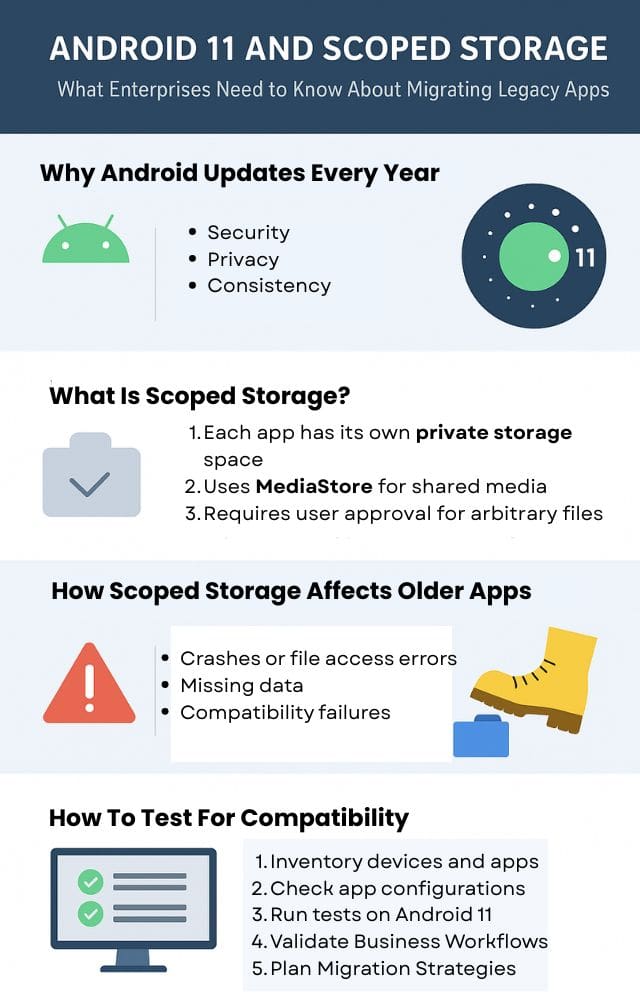
Security: Closing vulnerabilities and reducing attack surfaces.
Privacy: Giving users more control over their data and app access.
Consistency: Streamlining APIs and platform behavior so apps run more reliably across devices.
Android 11 was a major milestone for privacy and data protection. It introduced:
Stricter internal storage permissions via scoped storage.
A new permission for “all files” access (MANAGE_EXTERNAL_STORAGE), limited to specific use cases.
Updates to the MediaStore and Storage Access Framework (SAF), encouraging developers to use standardized APIs for file access.
For enterprises, the biggest shift was the formal enforcement of scoped storage — a new internal storage model that fundamentally changes how apps read and write files on a device.
What Is Scoped Storage and Why Was It Implemented?
In earlier versions of Android, apps that had permission to read and write external storage could freely access nearly all shared files on a device. That openness led to two problems:
Privacy risks — apps could quietly scan, collect, or tamper with files they had no business touching.
Security concerns — malicious or poorly written apps could corrupt other apps’ data or expose sensitive information.
Scoped storage was introduced to fix this. Under scoped storage:
Each app has its own private storage folder for files.
Apps must use MediaStore APIs to add or retrieve shared media (photos, audio, video).
For arbitrary files, apps must rely on the Storage Access Framework, which requires user approval.
The broad ability to scan or modify all external storage is gone, except in rare cases where the special MANAGE_EXTERNAL_STORAGE permission is approved.
The intent is simple: protect users’ data while nudging developers toward safer, more consistent APIs.
How Scoped Storage Affects Older Apps
While good for security, scoped storage disrupts many older enterprise apps. Legacy applications often assumed significant leeway for device storage of images and data. They could:
Save files anywhere on external storage (/storage/emulated/0/).
Scan directories to locate data created by other apps.
Share files freely without user involvement.
With Android 11 enforcing scoped storage, these assumptions break. Common issues include:
Crashes or file access errors when apps attempt to open or write outside their permitted scope.
Missing data when directory scans no longer return expected files.
Compatibility failures when the requestLegacyExternalStorage flag (which helped on Android 10) is ignored on Android 11 and higher.
Publishing restrictions since Google Play only allows the MANAGE_EXTERNAL_STORAGE permission for specific app categories.
In short, workflows that depend on open file access — such as barcode scanning apps that export CSV logs to shared folders — may not work without significant code updates.
How to Test Your Software for Android 11+ Compatibility
Many organizations still run older devices with Android 10 or earlier. Before upgrading hardware, it’s critical to test whether existing apps can handle the scoped storage model. Here’s how:
1. Inventory Devices and Apps
Record the models and Android versions of all devices in use.
List all business-critical apps and their versions.
2. Check App Configurations
Verify each app’s targetSdkVersion. If it’s below 30, it may behave differently once rebuilt or updated.
Look for code or libraries that reference direct file paths like /sdcard/ or Environment.getExternalStorageDirectory().
3. Run Tests on Android 11
Install apps on an Android 11 emulator or test device.
Exercise all file-related workflows (import/export, sync, file scanning).
Use adb logcat to catch SecurityException or file-not-found errors.
4. Validate Business Workflows
Confirm that critical flows — such as data capture, exports, and sync — still work as intended.
If apps rely on shared files, test whether SAF or MediaStore integrations are required.
5. Plan Migration Strategies
Preferred: Update apps to use MediaStore or SAF for file handling.
Fallback: For in-house apps not distributed via Play, use MANAGE_EXTERNAL_STORAGE cautiously.
Interim: Migrate data flows so apps exchange files through app-private storage or user-approved exports/imports.
CSSI Technologies Can Help with Android Migration & Software Challenges
Organizations relying on rugged devices running Android 10 or earlier should proactively test their apps on Android 11 to uncover compatibility issues before upgrading hardware fleets. By auditing apps, running real-world workflow tests, and planning a migration path, businesses can ensure that critical applications remain reliable and compliant as they move into newer versions of Android.
You may lack the resources or expertise to tackle one or both of Android migrations and test for or correct issues with your in-house developed software. CSSI can help. We offer support services for mobile device management and OS upgrades, even on an ad-hoc basis. For software challenges, our team of developers is available to consult on updating your internal software to be compatible with Android 11 and up. We have built experience in navigating these issues with multiple clients, and can accelerate your upgrades. Please contact us at CSSI to discuss Android updates and scoped storage challenges.
FAQ – Frequently Asked Questions About Scoped Storage and Android 11
Q: What is scoped storage, and why does it matter for your Android 11 upgrade? A. Scoped storage is a security restriction Google introduced in Android 11 that limits how apps can access files on external storage and in other apps’ directories. All apps lose access to other applications’ dedicated storage folders, regardless of the app’s target SDK version, and apps targeting SDK 30+ are further limited to their own app-specific directories plus media files they created themselves. For IT leaders, this means any app or MDM workflow that relies on reading or writing files across apps (not just within its own sandbox) can break the moment devices move to Android 11.
Q: Will our mobile device management (MDM) platform still function normally after the upgrade? A. Not without changes. SOTI MobiControl’s Android Enterprise agent moved to SDK 30 in November 2021, which puts it squarely under the new restrictions. According to SOTI, this affects package installation, device enrollment via configuration files, file sync, lockdown functions, custom data handling, script execution (both legacy and JavaScript), and the remote control file explorer. IT teams should expect to validate these specific functions before a fleet-wide rollout, not assume they work as-is.
Q: Which day-to-day IT operations are most likely to break first? A. Anything that depends on the MDM agent reading or writing files to a shared or external location that another app also touches — for example, pushing configuration files for enrollment, syncing files to line-of-business apps, or using the file explorer for remote troubleshooting. These are the functions SOTI explicitly calls out as impacted, so they’re the ones worth testing first in a pilot group before broader deployment.
Q: What can our team do to prevent or work around these restrictions? A. First and foremost, CSSI recommends that you work with us to run a proof of concept well in advance of an upgrade. This will help to identify issues to address. To initially address application issues which arise: First, as a preventive measure, store files in the MDM agent’s own internal storage or in mutually accessible shared directories (like Downloads) instead of general external storage. Second, where cross-app file access is unavoidable, grant the “Manage External Storage” permission — this can be done via script execution, an OEM-specific plugin (v1.18.3+), or built into device enrollment on MobiControl v15.1.2 and later. CSSI can assist and advise in your efforts to prepare for Android 11.
Q: If we grant “Manage External Storage,” does that fully resolve the compatibility issues? A. No — this is an important caveat for planning. Even with that permission granted, apps still cannot access other applications’ private storage directories. So while “Manage External Storage” restores broader access to external/shared storage, it does not eliminate the underlying barrier to app-to-app file sharing. IT leaders should budget time for testing specific integrations (especially between MDM and other business apps) rather than treating this permission as a complete fix.