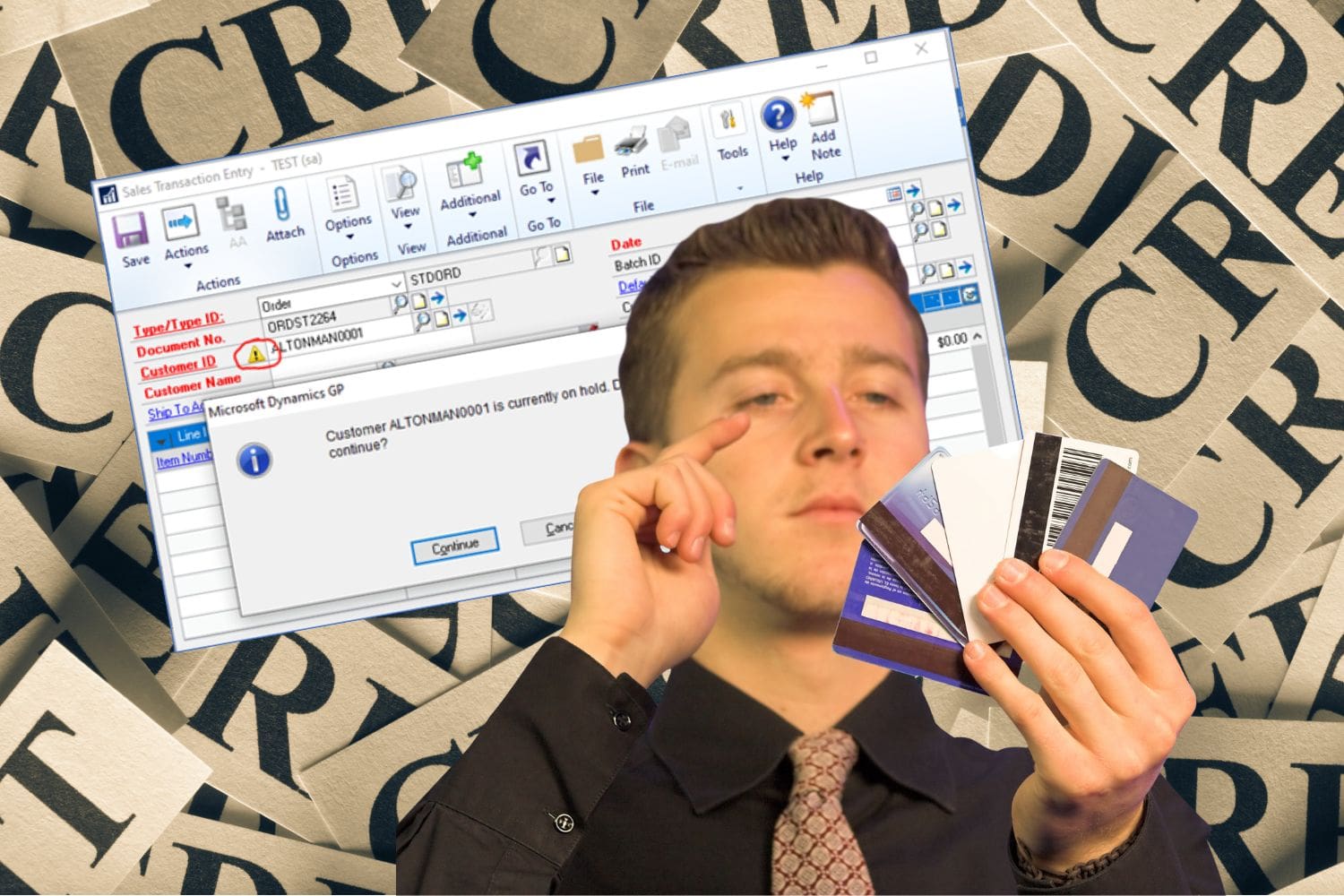
Assigning Process Holds to Sales Documents
You can use the Sales Process Holds Setup window to create process holds to assign to your sales documents. Process holds are user-defined restrictions that control the processing of sales documents at different stages of the sales cycle.
Some examples of process holds are:
- Prevent posting of documents until a manager approves the transactions
- Restrict the printing of invoices until addresses have been verified
- Stop the order fulfillment process because a part has been recalled by the manufacturer
- Prevent the transferring of a quote to an order if the customer is over its credit limit
You can set up passwords to further restrict processing. The user must enter the password to remove holds from documents. If you do not use passwords, you can set up a process hold just to remind the user to complete a task before processing a sales document. Once the task is completed, the user must remove the hold from the document before processing occurs. You can apply process holds to any sales order processing document type.
To set up process holds, go to Sales > Setup > Process Holds. Enter an ID and description. You can assign a password or leave it blank. Check which processes you want to restrict with this hold.

To assign a Hold to a SOP transaction, go to Sales > Transactions > Sales Transaction and select a document. Click on the Go To button and select Holds.

Select a Process Hold ID and click on Assign. You can assign more than one Hold to a document.

Once a Hold is assigned, you will see a red circle indicating a Hold is on this document.

To remove the Hold, click on the Go To button, select Holds and Remove.
Add the Hold column to a Sales Transaction SmartList to see all documents on hold.
GP Support from CSSI
For GP support and help with upgrades or training, please contact CSSI.