On-Demand Webinar: What’s New In the Latest Version of GP?
The update to GP2018 was released in October of 2019, and we’ve now had time to digest the changes. One of the major (and perhaps confusing) changes is that GP has adopted Microsoft’s ‘Modern Lifecycle Policy’ and will no longer use version numbers. So the official latest version is known as just ‘Dynamics GP’.
For a detailed look at all that’s new in the most recent iteration of GP, please see our on-demand webinar:
Ready to upgrade? Contact CSSI to learn how we can make your upgrade painless.
Does your annual budgeting process give you headaches? Do you cobble together spreadsheets and constantly chase down errors? Consider Planning Maestro, an excellent budgeting add-on for GP which enables you to easily budget, forecast financial performance, analyze results, and share info throughout your business.
https://www.youtube.com/watch?v=649upMJoi8M
Planning Maestro is an excellent budgeting add-on for GP. It features:
Planning – improve visibility within your business
Budgeting – build your budget model in days, easily generate multiple scenarios
Forecasting – see the impact of multiple scenarios
Analytics & Reporting – build and delivery timely data with reports and dashboards
CSSI is an experienced GP parter as well as a partner of Planning Maestro. Contact CSSI today arrange your personal demo!
Does your company spend more than 4-hours a month working on bank or credit card reconciliations? If so, check out this pre-recorded webinar for a GP add-on which will be of interest to you. Watch ‘Automation Made Easy’ and see how Easy e-Bank Rec works symbiotically with Dynamics GP and offers automation, matching, recording bank transactions and reconciling to make month-end less stressful for everyone.
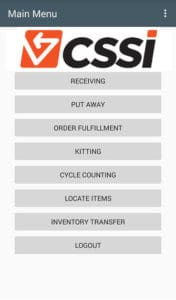
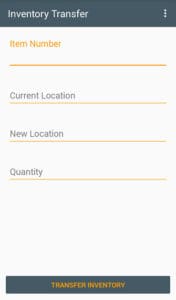
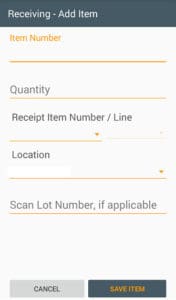
As inventory visibility and accuracy have become critical to your competitiveness as a business, the right WMS (warehouse management system) makes all the difference in supporting your team. As experts in both GP and barcoding/supply chain operations, we built WMS by CSSI to integrate with Dynamics GP, and to run on the latest generation of Android Mobile Devices. It’s a powerful, fast, customizable WMS which your business will love.
Watch the video above for the recording of our Sept. 5 webinar on WMS by CSSI. To learn more about our WMS, please complete the form at right.
Are you excited about data? Data increasingly provides a competitive advantage to today’s leading organization. How effectively are you utilizing data within your organization?
Do the right people have easy access to the data they need to make decisions?
Do you have informative, easy-to-share dashboards in place to monitor business results?
Are your reports flexible and dynamic? Are non-technical users able to slice and dice the data?
Are you able to tie together and compile data stockpiled in various databases throughout your organization?
If the answer to any or all of the above is “no”, then how much could you improve your business by turning “no” to “yes”?
In the following webinar, we discuss the power of analytics and Microsoft’s Power BI software, a tool which puts powerful analytical capabilities in the hands of even non-technical users. Power BI enables you to create dashboards and dynamic reports, pushing data down to the users who need it.
Learn more about how CSSI can help you utilize and implement Power BI:
In this video, CSSI present Dynamics GP Intermediate Management Reporter Training. We step up the difficulty level and address some of the more sophisticated things you can do with this tool.
In this Management Reporter Intermediate tutorial, we address:
Report building blocks logic – column definition, etc.
Organizing the report library into folders
How to get percentage columns into a report
Exporting data to a Microsoft Excel spreadsheet
Adjusting fonts, styles, and colors
What are format codes?
BASE, CBR, and other fun codes
Creating a new report from scratch.
Some of the many great uses for Management Reporter:
Balance Sheet
Income statement
Cash flow statement
Trial balance
Accounts Receivable
Account Payable
Need support with Dynamics GP on other topics such as using the smartlist builder, GP training, SQL server management and optimization, SSRS Reports (SQL Server Reporting Services), or upgrading your version of GP? Learn more about how CSSI can help you on these topics as well as GP’s Management Reporter:
Learn more about how CSSI can help you with GP’s Management Reporter:
Did you miss the first webinar in this series, Management Reporter for Beginners? Click here to view.
Did you miss our GP team’s most recent webinar on the topic of “Year-End processing tips for Dynamics GP?” Now you can watch the webinar on demand. Check it out:
Need help with year-end processing in Dynamics GP?:
Dynamics GPManagement Reporter for Beginners FAQ
Microsoft’s Management Reporter tool can be extremely useful for Dynamics GP users to create a financial report such as balance sheet , trial balance , income statement , and really any kind of financial statements . Here are answers to several frequently asked questions about the Microsoft Dynamic GP Management Reporter tool:
What’s the most current version of Microsoft Management Reporter available? The most current version of Management Reporter is Management Reporter 2012. It’s the Cumulative Updates (service pack update versions) that you want to keep your eye on since it’s unclear as to whether there will be full future versions of Management Reporter released. The most current version and service pack (CU16) is: 2.12.16002.0
What version of Management Reporter will work with my current Dynamics GP version? We’re so glad you asked! It does make a difference. Here are the versions of GP that the most current version of Management Reporter will work with: GP 2013 GP 2013 R2 GP 2015 GP 2015 R2 GP 2016 GP 2016 R2 GP 2018
If you’re thinking about using Management Reporter or upgrading GP, be sure to investigate version compatibility. Not sure where to find this information? Contact us at support@cssi.com and we’ll help you find the information you need.
What if I’d like to upgrade Management Reporter? Contact us atsupport@cssi.com for more information. We’re happy to help you out! We can also support and train you on report design, using this report designer to create multiple reports, and setting up your data warehouse / management reporter database.
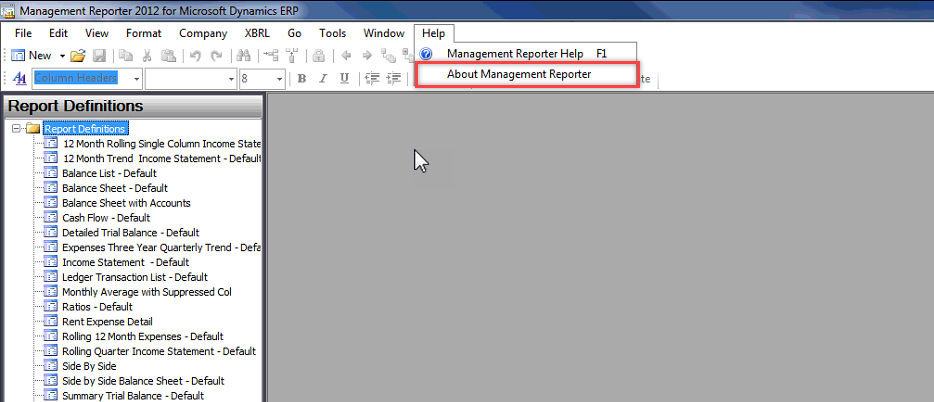
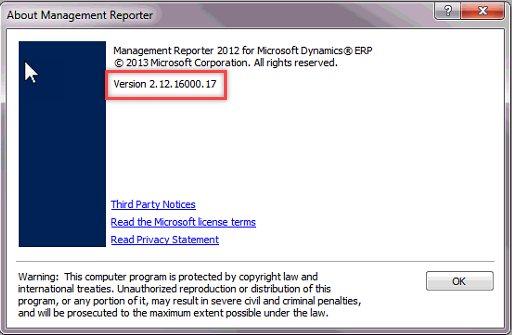
How do I know what version of Management Reporter my organization is currently running? In Management Reporter, click on Help and select About Management Reporter
On the About Management Reporter screen, look for the version information:
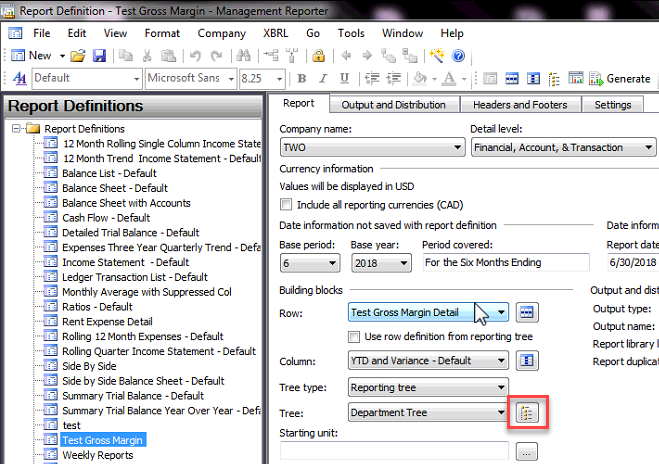
Is there more than one way to add a row to the reporting tree in Management Reporter? a) Right-click and select to insert the new row amongst existing rows: Click to edit the reporting tree:
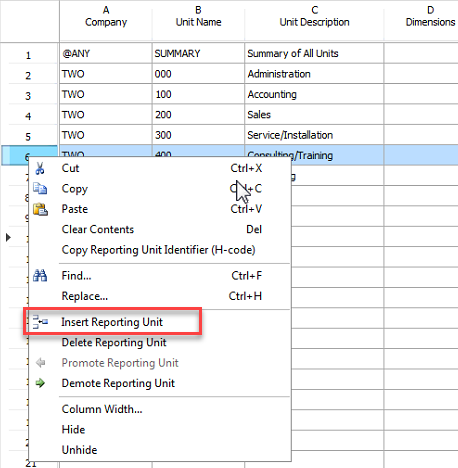
Right-click where you’d like to add the new row and select Insert Reporting Unit:
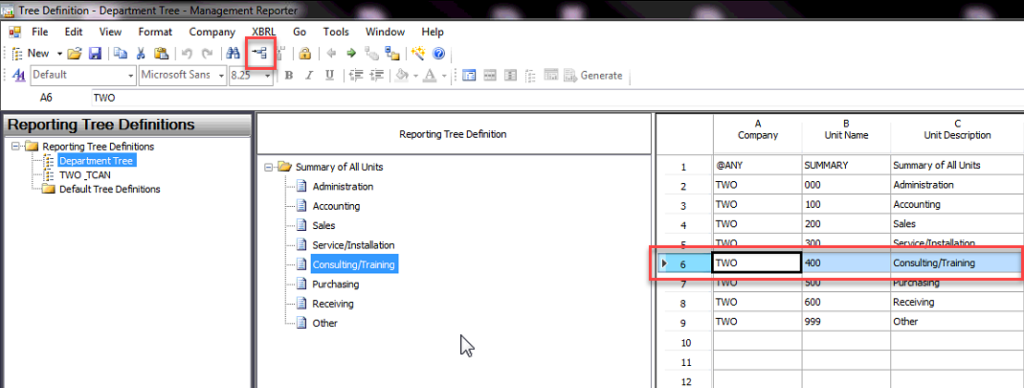
b) Select the row where you’d like to insert the new row and click the Insert Row button:
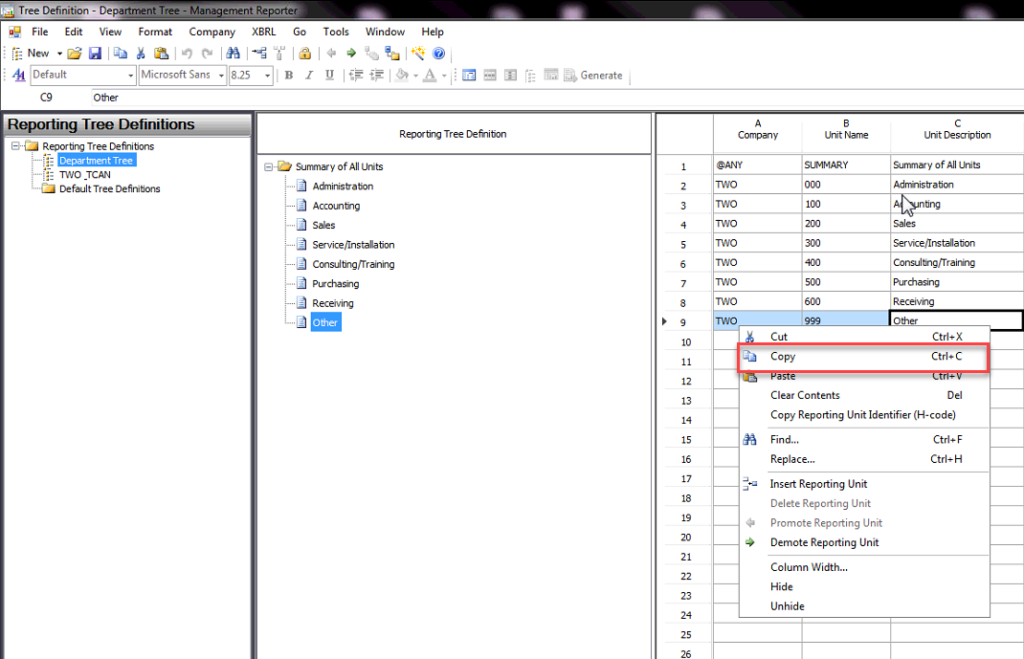
c) Copy and paste an existing row Right-click and Copy the row you’d like to duplicate and then right-click and Paste where you’d like it to be inserted
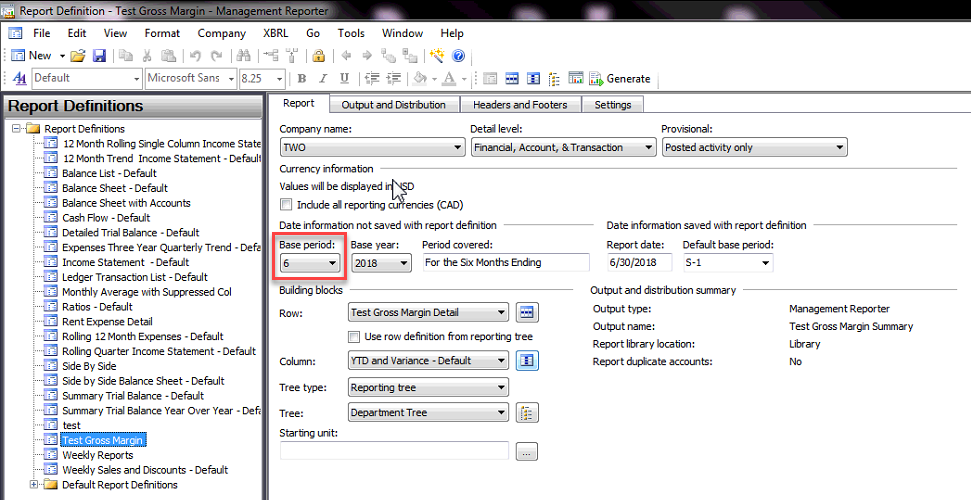
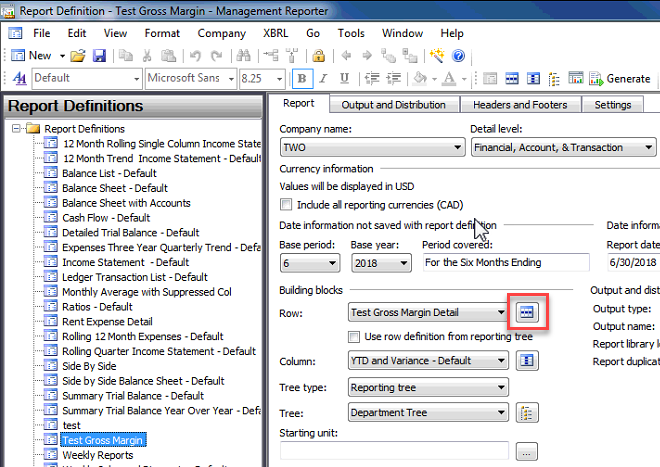
Most times I need to see results for the year so far, and other times I just want to see results for the current month. How do I change the timeframe for which an individual report runs? a) On the Report tab, you can specify which month you’d like set as your Base Period.
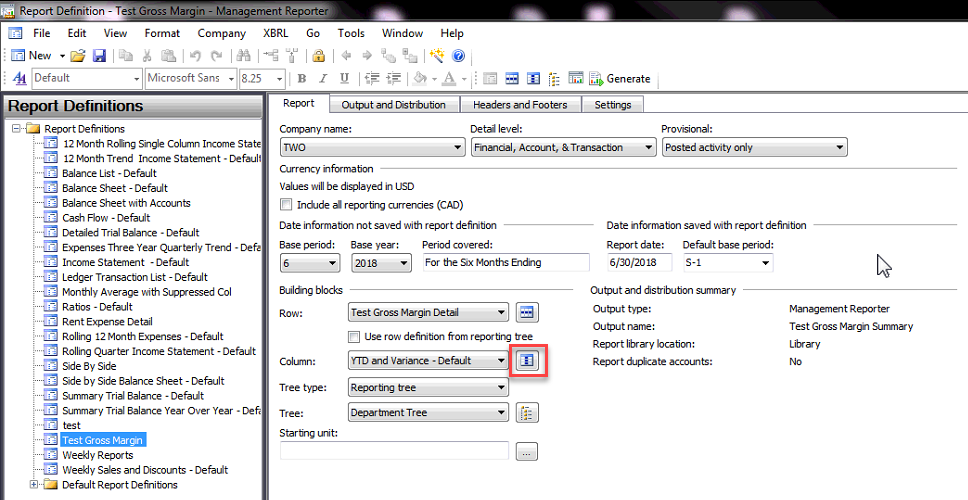
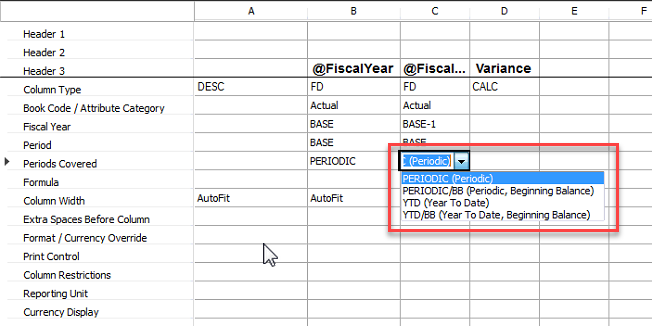
b) Click the Column details icon. c) In the Periods Covered field(s), select whether you want the fields to register as YTD (Year to Date) or PERIODIC (Periodic). YTD will show any data from the beginning of the year up to the month you’ve selected as your Base period. Periodic will show data only for the month you’ve selected as your Base period.
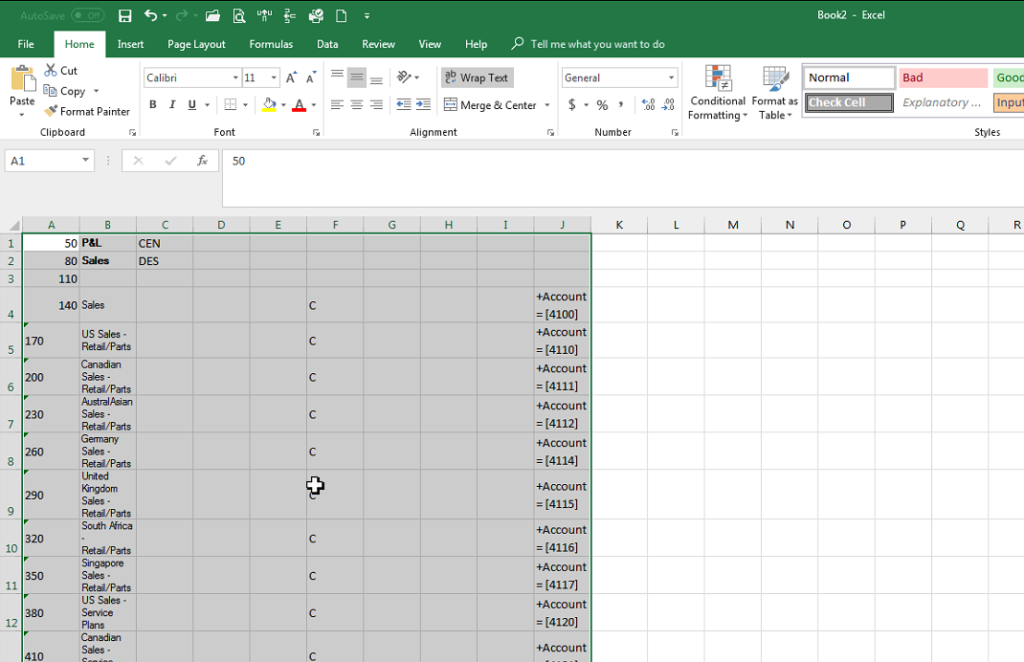
It’s easier for me to review field mappings in Microsoft Excel. What’s the easiest way for me to review the row definitions in Excel? a) On the Report tab, select the Rows details icon.
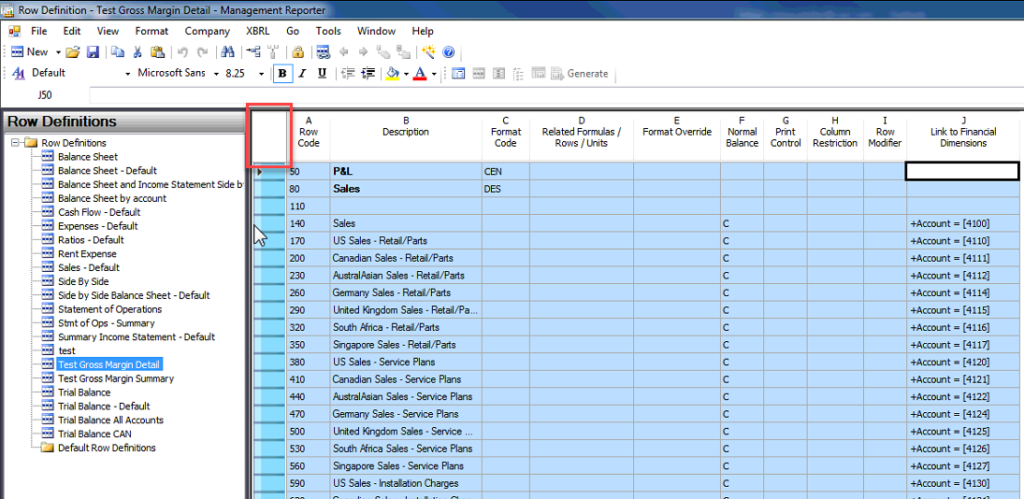
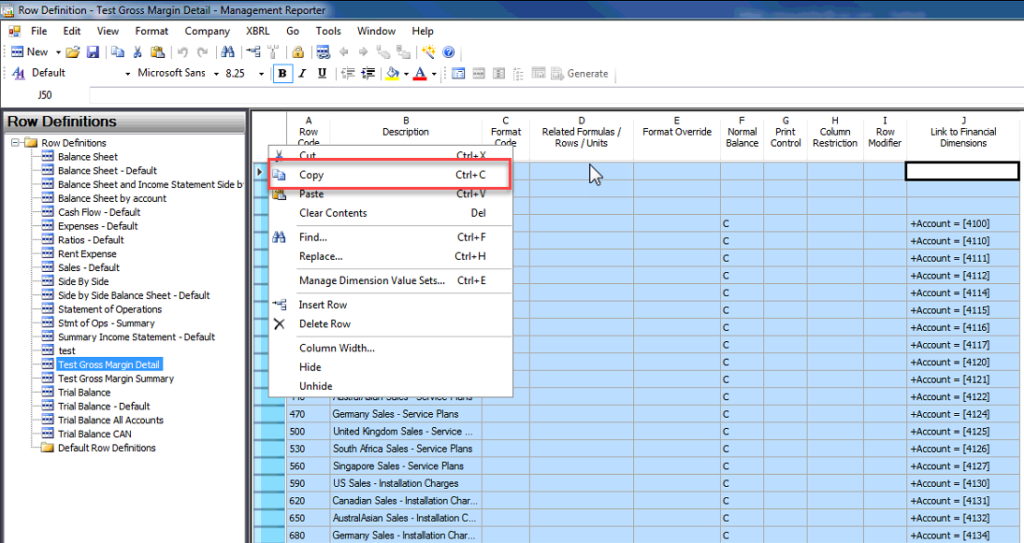
b) Copy the data fields in the Row Definition
Pro Tip: Instead of trying to manually select and copy all the fields, just double-click in the square in the top-left corner of the fields. It will auto-select all data fields in a snap!
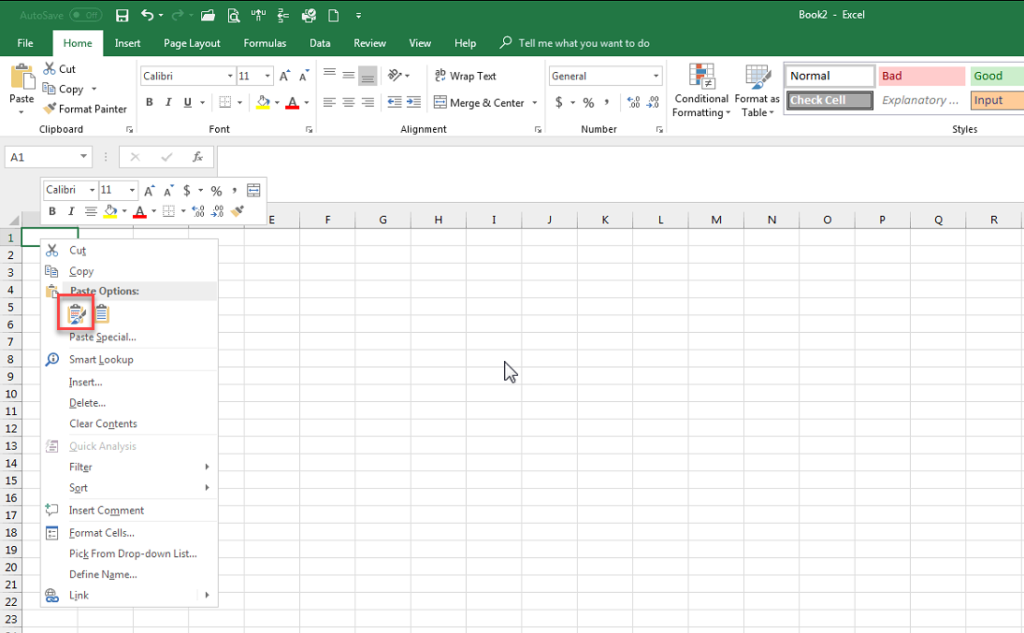
c) Open a New Excel Book and paste the data.
Training GP Management Reporter Training Videos
Your Next Steps
Want to learn more about Dynamics GP, receive Management Reporter training, or learn how to create financial statements such as a balance sheet in MR? Join our GP mailing list:
Management Reporter is a powerful interactive financial reporting tool used with Microsoft Dynamics GP and other ERP systems. Management Reporter allows Controllers, Accountants, and other Finance team members to create custom reports without the help of their IT team. Ease of use, native Active Directory integration, and scalability are just a few of the reasons why Management Reporter is a great reporting and financial statement tool.
In this recorded webinar, the CSSI Technologies GP team provides a tutorial on Dynamics GPManagement Reporter tutorial for beginners. This is part 1 of a 2 part series (see part 2 here – Intermediate Management Reporter Tutorial).
This Dynamics GPManagement Reporter tutorial includes:
Management Reporter overview
Report structure – report definition and how to build a report
Running reports – sample report outputs, and how to export reports to Microsoft Excel
Management Reporter can be used as a report designer for many different types of financial data reports:
CSSI can support you with report creation and training using Management Reporter, Power BI, and SSRS (SQL Server Reporting Services) and other tools. Interested to learn how CSSI Technologies can help to support your Dynamics GP usage, or to learn about future webinars? Contact us:
WMS by CSSI is warehouse management software for Dynamics GP. Whether you are implementing your first warehouse management software, or you are seeking to upgrade a Windows Mobile-based system to a system which can work with the Android OS, you will want to take a good look at WMS by CSSI. This is our new warehouse management software specifically developed to run on Android. We baked all of the essential WMS functionality into a tool which is also flexible and customizable — CSSI’s custom software development team can work with you to create a true custom-fit solution.
Do you have an existing WMS? Does it run on Windows Mobile devices? Microsoft will end support for Windows Mobile on 01/14/2020, which means that handheld computers running this OS will not have the support for bugs and viruses which you require as an enterprise user. If your WMS does not accommodate Android devices, speak to CSSI to learn about your options.