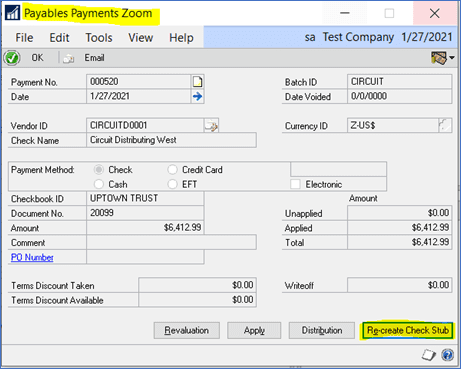

Have you ever had the need to see what documents were printed on a vendor’s check stub or remittance in Dynamics GP? As of GP 2013, you have to ability to recreate the check stub. Just drill down to a vendor payment transaction and click on the “Re-create Check Stub” button. It will even include any credits that were applied on that payment.
Need GP support? The experienced GP consultants at CSSI are here to help. Contact us to get started.
Do you use the Payables Edit Payment Batch window in Dynamics GP to pay vendor invoices? Did you know that you can choose which columns you’d like to display in this window?
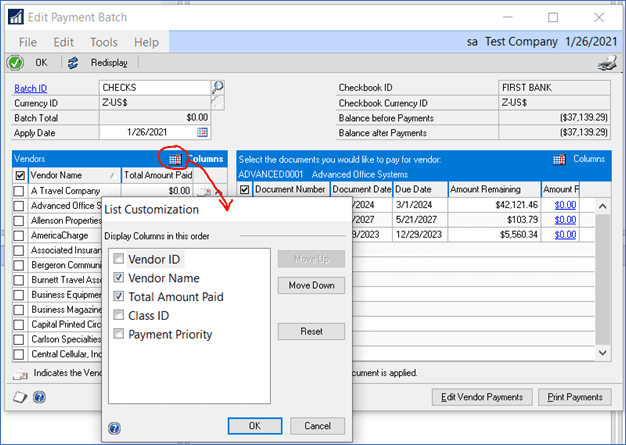
By default, the first column on the right-hand side of the window is Voucher Number. That number doesn’t normally mean anything to someone choosing invoices to be paid. Why not change it to Document Number? Click on the icon circled below and check which columns you want to have displayed. The use the Move Up or Move Down buttons to rearrange the columns.
You can do the same with the columns on the left-have side of the screen.
You can also change the width of each column by clicking on the divider line between each column name and drag right or left to make it wider or narrower.
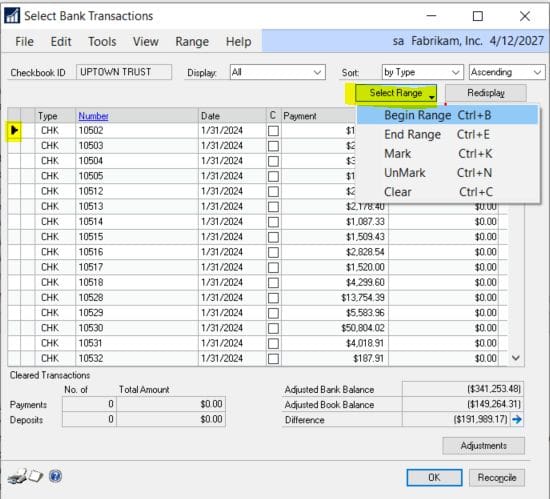
Ever wonder how to clear a range of transactions in GP when doing bank reconciliation? Here’s how:
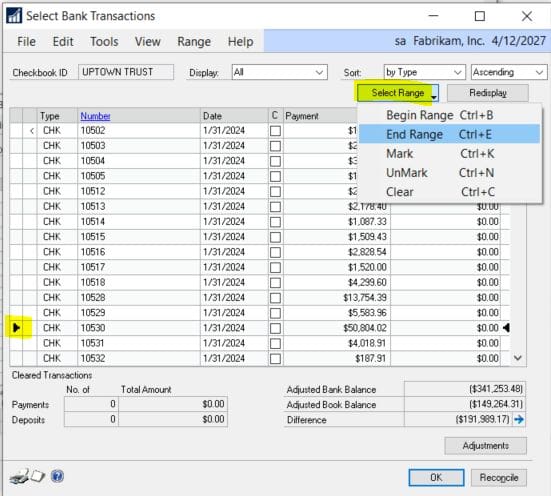
In the Select Bank Transactions window, click to select the first number to be cleared (indicated by the black arrow). Click on the Select Range button and select Begin Range (or Control-B)
Scroll down the list and select the last number to be cleared. Click on the Select Range button and select End Range (or Control-E)
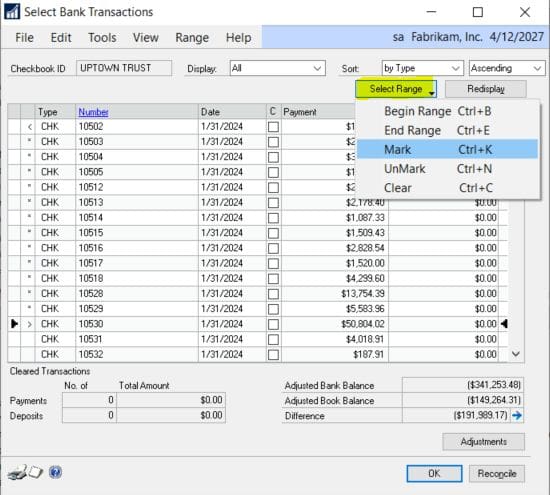
This will mark all the numbers in your range with an asterisk
Click on the Select Range button again and select Mark (or Control-K)
All the numbers within your range will now be checked in the C (Clear) column.
Saves a lot of clicking!
Now that you know how to clear a range of transactions in GP, we hope it will save you time when doing bank reconciliations.
Do you have a Windows 10 machine? And are your GP fonts too small? You’re going to spend long hours struggling to read your screen, which will result increasingly in eye pain and frustration. Don’t settle for font sizes which are too difficult to read. Try this!
Log out of GP
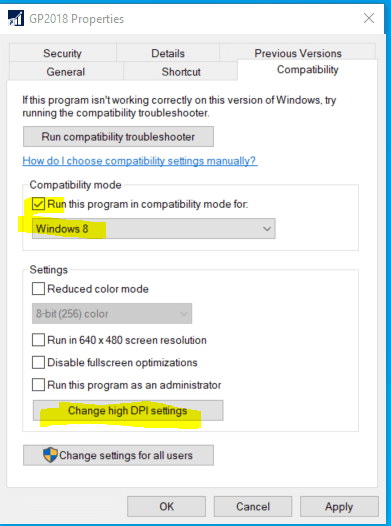
Right-click on your GP desktop icon and select Properties
Click on the Compatibility tab
Make the changes highlighted below
Under Compatibility mode, check the checkbox and change the compatibility to Windows 8 or 7
Click on Change high DPI settings and check the “Override high DPI scaling behavior” box
We hope that knowing how to change GP font size is a helpful tip for you. Do you need more GP technical support or help with upgrades? The GP experts at CSSI are here to help. Please contact us to learn how we can help.
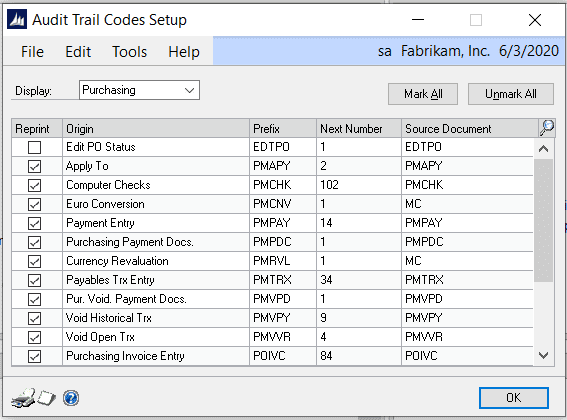
Here’s a quick explainer on how to setup GP audit trail code prefixes.
When you post a batch in one of the subsidiary modules (Payables, Receivables, etc.), it posts to the general ledger and uses an Audit Trail Code for the Financial Batch ID.
To find out what the Audit Trail Code prefix represents, go to Microsoft Dynamics GP > Tools > Setup > Posting > Audit Trail Codes.
Select a module in the Display drop-down list.
Need GP support? We’re here to help! Contact CSSI to discuss how we can help you with GP today.
Wondering how to use GP SmartList Options?
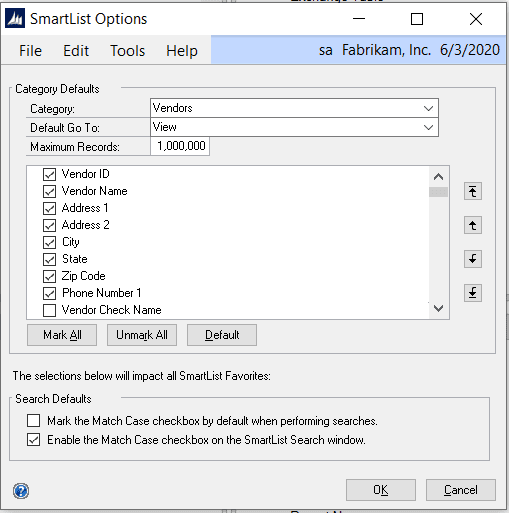
Use this window to set up SmartList Defaults, such as Maximum Number of Records, Default Go To windows and determine which columns are visible, by default, for specific SmartList favorites.
Go to Administration > Setup > System > SmartList Options
Select a Category (SmartList folder)
Default Go To – this is the window that will open when you double-click on a row in this particular SmartList
Maximum Records – set this to a large number so that you don’t have to remember to change this every time you create a new SmartList Favorite.
Check or uncheck fields to define the default columns for this list. Rearrange the columns using the up and down arrows on the right.
Are you or your finance team in need of GP training or support? The experts at CSSI are here to help! Contact us today to learn more about how we can help.
How to scan documents within GP
Are you aware of how easy it is to scan and attach documents to Dynamics GP transactions and master records? This new Document Attachment functionality was added in GP 2013 R2. All you need is a Windows Image Acquisition (WIA) enabled scanner/printer and a little bit of setup.
1. Document Attachment Setup
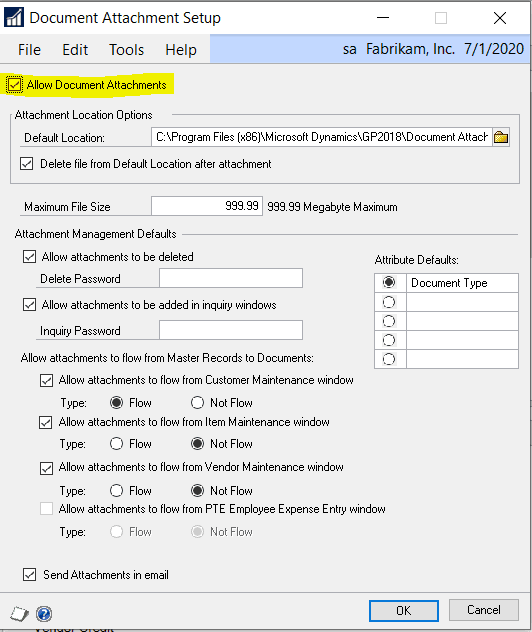
To enable Document Attachment, go to Microsoft Dynamics GP > Tools > Setup > Company > Document Attachment Setup
Check the “Allow Document Attachments” box
Press the F1 key (or go to Help > About This Window) for more information on the other setup options in this window
2. Using Document Attachment
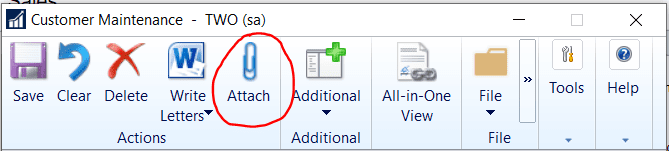
Open almost any GP window, select a record then click on the Attach button
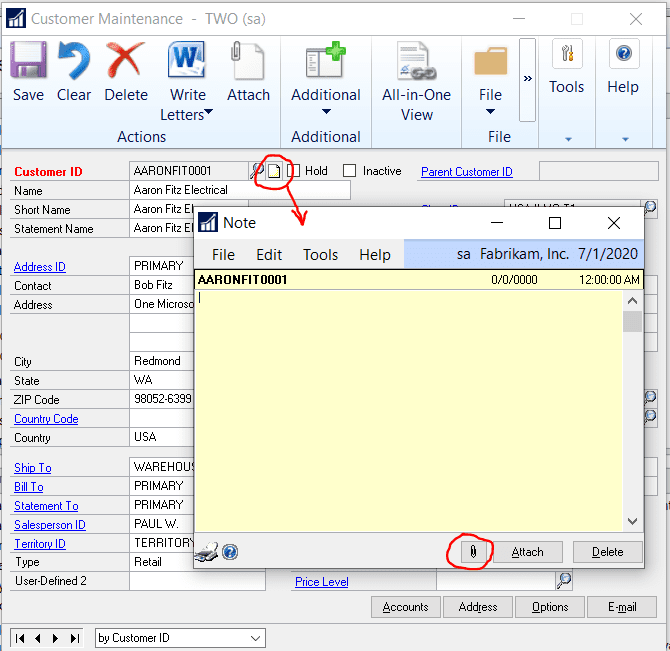
Or, click on the Notes icon then click the paper clip icon here
Click on the Scan button in the Document Attachment Management window
If you already have a scanned image of a paper document, you can click on the Attach button to browse to that image file.
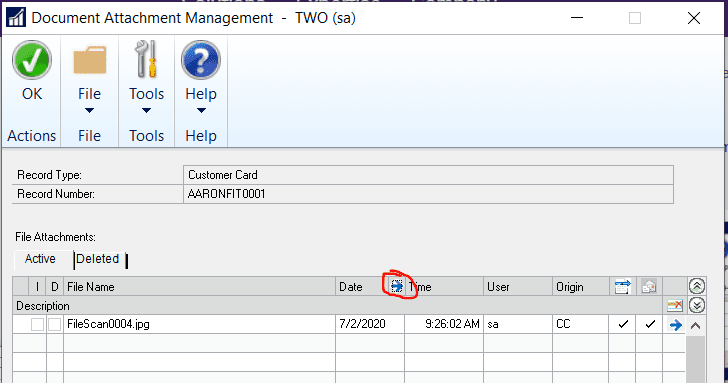
You can then view the status of an attachment by clicking on it to select it then click on the blue arrow to the right of Date. This will show you the date and the time a user has attached, deleted or scanned the image. If, in the setup, you marked to allow a document to flow, this inquiry screen will also show the date and time the document flowed to a transaction.
Once a record has an attachment, the Attach image changes to this
We hope that this helps with document management! Now that you know how to scan documents within Dynamics GP, is there other support or training which your team needs? CSSI’s team of Dynamics GP experts is standing by to support you. Contact us today to learn more.
Multiple Default Purchase Accounts for Vendors
If you’ve been entering payables transactions in GP, then you probably already know that you can assign a default purchase accounts to each vendor. BUT, did you know that you can assign multiple accounts to a vendor?
Here’s how:
In the Vendor Account Maintenance window, click on the Ellipse button (button with 3 dots) to the right of the Purchases account.
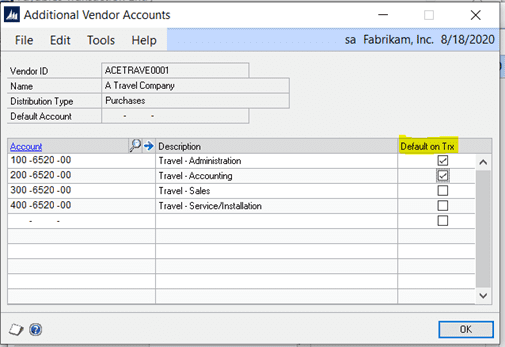
Enter the additional accounts that will used for this vendor and check those accounts that you want to Default on the Transaction.
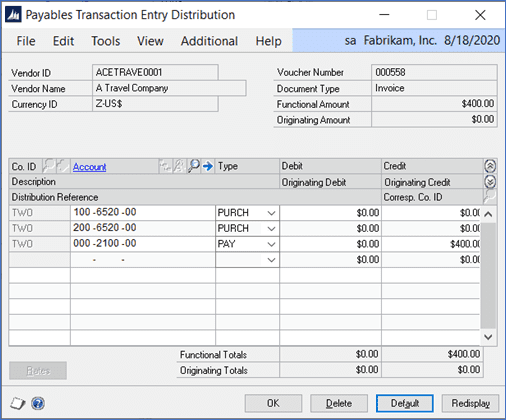
When you create a payables transaction for this vendor, and go to Distributions, the Default accounts will fill in. All you need to do is enter the amount for each account.
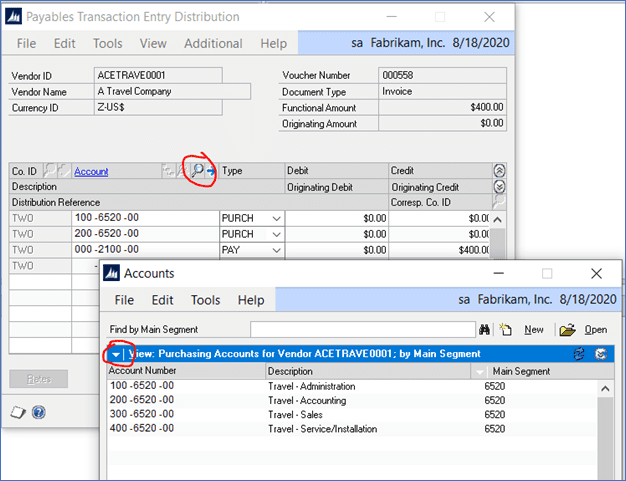
And, when you click on the lookup icon to the right of Account, all the vendor’s default accounts will appear. You can change to look up to show All Accounts by clicking on the down arrow to the left of View (in the Accounts lookup window.)
If you issue monthly finance charges, and you have some of those customers who never pay theirs, you can easily waive these finance charge transactions in GP. By using the Waive process, this will reverse the posting of the original finance charge.
And then when you drill down to that the finance charge, you can see that it’s been Waived.
You can also view waived finance charge totals in SmartList by Life-to-Date (LTD), Year-to-Date (YTD) and/or Last Year (LYR).
In GP, you can use a Fixed or Variable Allocation account to automatically distribute fixed or variable percentages of a transaction among several distribution accounts.
1. Fixed Allocation
Go to Financial > Cards > Fixed Allocation
Enter an account number and description
Enter each Distribution Account and its percentages
Click on Save
2. Variable Allocation
Go to Financial > Cards > Variable Allocation
Indicate whether you want to calculate the percentages based on the year-to-date balance or on the transaction period balance of each breakdown account
Select the series where you expect to use this allocation account; the allocation account will appear in all lookup windows in the selected series
Enter the distribution account (the account that will be posted to)
Enter breakdown accounts by selecting a distribution account then enter the corresponding breakdown account on the right. (The balances of the breakdown accounts determine the percentage that will be posted to each distribution account.)
3. Using GP Allocation Accounts
When you use an allocation account in a transaction, you won’t see the breakdown of the distributions until the transaction is posted to general ledger
An allocation account cannot be assigned as a distribution account for another allocation account
You CAN assign an allocation accounts to a vendor as a default purchasing account