| It’s the end of the year and you are trying to encourage your Microsoft Dynamics GP users into staying logged out of company related windows as you work to complete year-end close. You send blast emails, make calls and even send a few instant messages to schedule the process, yet you still find that there are folks that just didn’t get the memo. This same scenario also crops up when you try to perform file maintenance, even though it is often scheduled and thoroughly communicated. After the battery of unread emails, missed calls and so on, you find yourself wishing there was an easier way.
Microsoft heard your pleas and added a feature in Microsoft Dynamics GP 2013 R2 that allows you to take a company offline. This should help keep your busy bee Microsoft Dynamics GP user’s company activity to a minimum during year-end close and for file maintenance. Continuing to schedule these procedures along with this feature should help minimize interruptions and frustration.
As you know, new features are released all the time in the software world. Mass emails are typically sent out to make users aware of the changes, the benefits, and how they can increase productivity. But new tools are only beneficial if you know how to use them, and we all know that between meetings, conference calls, and other things that flood our busy workday, it’s not always easy to keep up.
CSSI Technologies is here to help. We’ve created an easy-to-use, comprehensive guide on how to take a company offline in Microsoft Dynamics GP.
Here’s what you need to do: |
Download this information as PDF – click here!

|
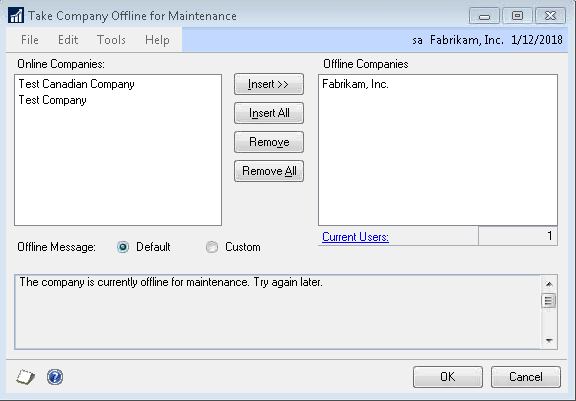
1) Start by going to Administration > Utilities >System >Take Company Offline. Select a company and click on the Insert button to move the company to the Offline Companies section. You can insert multiple companies one at a time, or use the Insert All button to insert all companies.
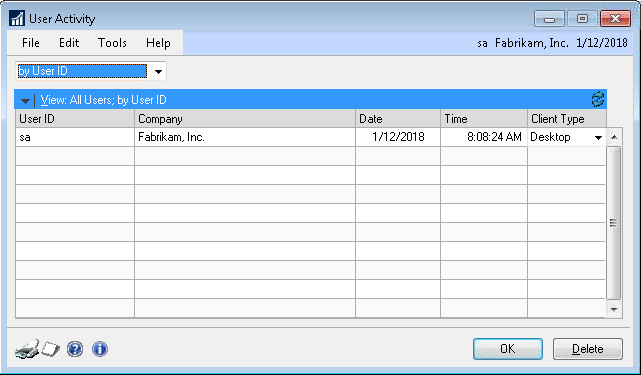
Pro Tip: When you select a company in the Offline Companies list, you can see how many Current Users are logged into that company. Click on the blue hyperlink “Current Users” to see the list of User ID’s.
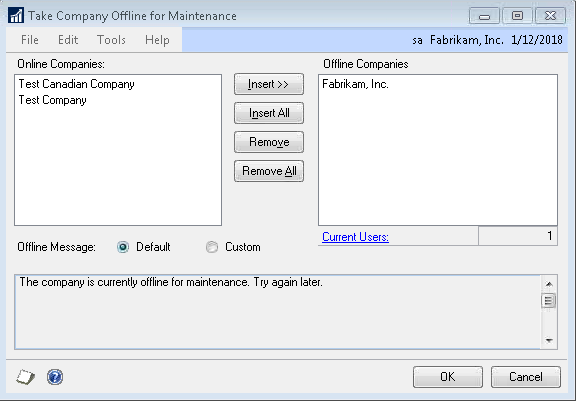
2) You can establish a message that will be shown to any user that attempts to log in to a company after it has been taken offline. Select “Default” to utilize the default message, or “Custom” to provide additional information to users. Users that are currently working in the company until they log out. Once they log out, they will only be able to log back in to the company if they have offline access.
3) Once you are finished, click on the OK button in the bottom right-hand corner.
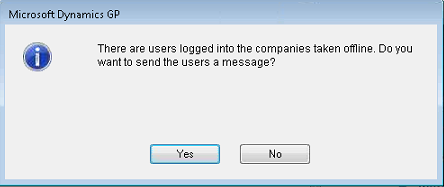
If users are logged into the companies that are being taken offline, a message appears asking if you would like to send those users a message.
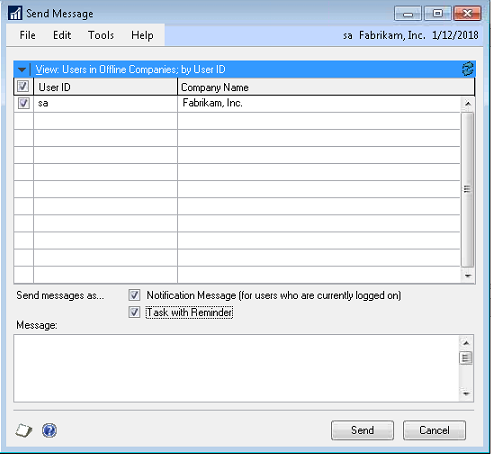
4) If you click “Yes,” the Send Message window appears.
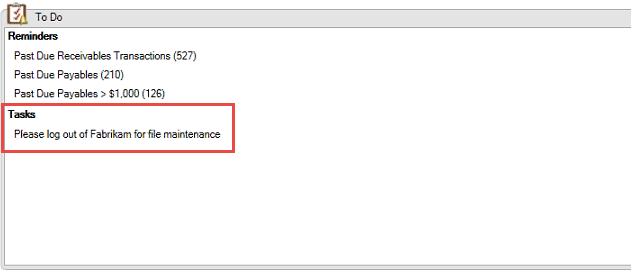
5) Users will see either a “Task” on their Homepage:
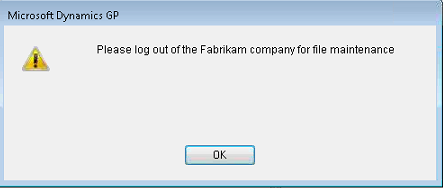
Or they will receive a popup message:
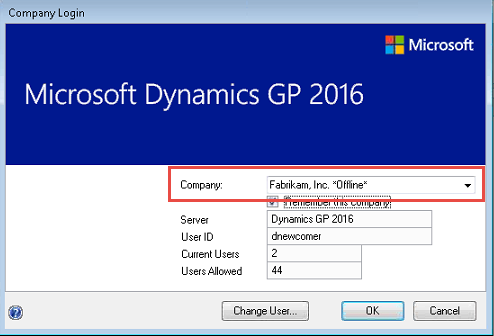
6) When users try to log back in, it will be indicated that the company is offline in the Company name:
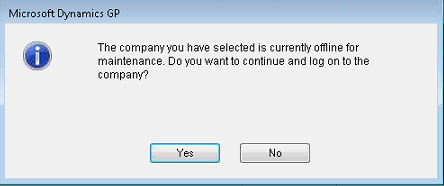
7) If they select the offline company, they will receive this message:
Earlier, we mentioned that the only way a user could continue working in an offline company was if they were granted offline access. Here’s how to grant a user offline access:
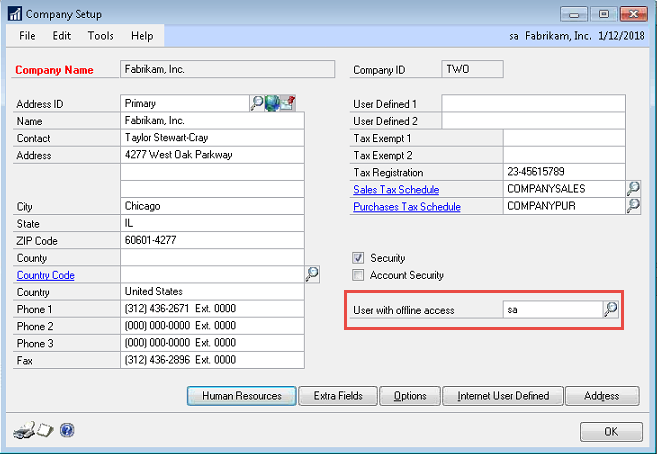
8) Go to Microsoft Dynamics GP > Tools > Setup > Company > Company. Once you’re on the Company Setup screen, specify the user you would like to set up by entering the User ID in the “User with offline access” field. Be sure to click OK in the bottom right-hand corner to save your changes.
While this feature is very easy to configure, the CSSI team still recommends scheduling year-end close and file maintenance. With the support of our team and this Microsoft Dynamics GP feature, we hope that your year-end and scheduled file maintenance procedures will become frustration free and painless. If you have any questions, our Microsoft Dynamics GP support team is always happy to help! We can be reached at support@cssi.com or at 570-524-4424.
Did you find this GP info helpful? Join our mailing list for more pro tips and info…







 Microsoft Dynamics GP is a comprehensive ERP / business software system ideal for SMB (small and medium-sized businessess). With a user base numbering in the tens of thousands, and the powerful backing of Microsoft, GP provides a robust mix of solutions for many different types of businesses. Did you know that CSSI provides Microsoft Dynamics GP support?
 As with any complex ERP software, a great partner providing Microsoft Dynamics GP support is critical for success. Cumulatively, CSSI’s Pennsylvania-based team has decades of experience in GP, working with businesses as varied as manufacturing, distribution, education, retail and healthcare. The team prides itself on friendly, prompt and effective service, which is why our customer retention rate is outstanding.