

GP Tip – Cleaning Up Auto Complete Selections
Here is an older (but still handy!) tip… GP has this feature called Auto Complete that remembers what a user had previously typed into a field. The only problem is that it remembers the invalid data, too.
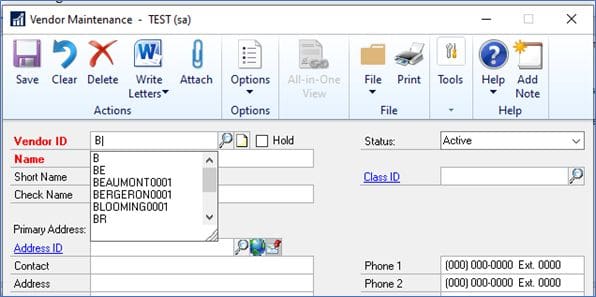
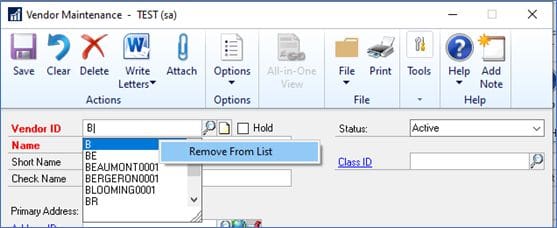
You can remove these unwanted values that appear in your list by right-clicking on a selection then clicking on “Remove From List”. It’s as simple as that!
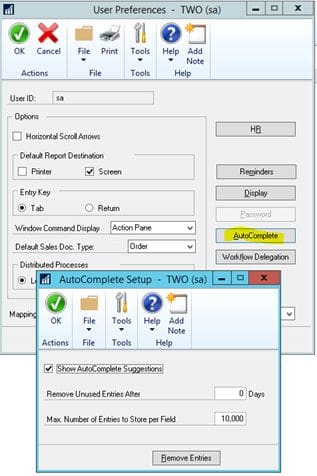
You can use the AutoComplete Setup window (Microsoft Dynamis GP > User Preferences > Auto Complete) to specify the number of days when unused entries should be removed and the number of entries that can be saved for each field. You also can remove all existing AutoComplete entries. If you decide not to use AutoComplete, you can unmark the Show AutoComplete Suggestions option. Because this is under User Preferences, this is a by-user setting.
GP Support from CSSI
Do you have a solid GP support partner? We can help. For more GP support and help with upgrades or training, please contact CSSI.